
Adjusting a Wage Report
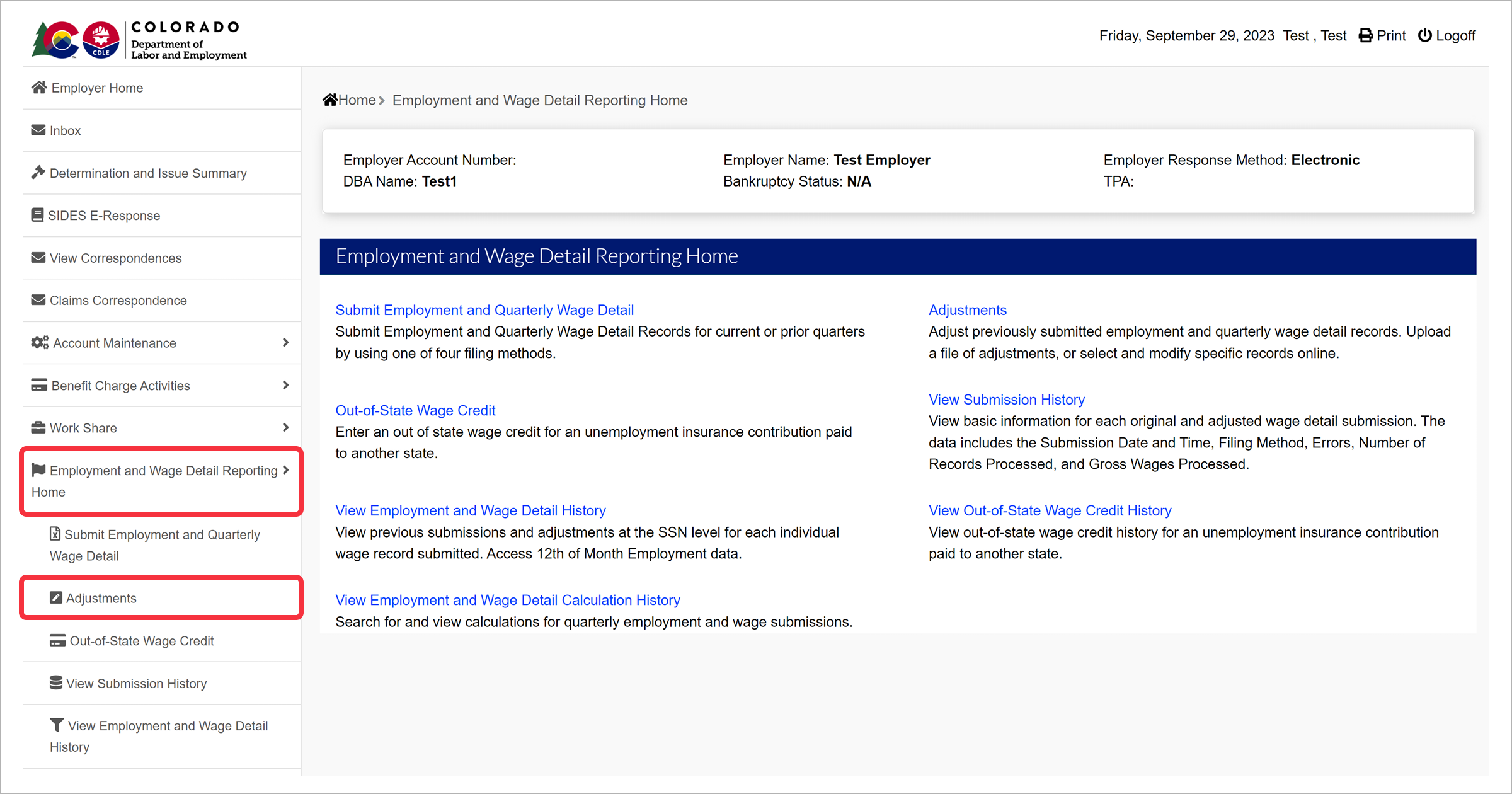
After submitting a wage report, employers can make adjustments to previously reported wages. Select the “Employment and Wage Detail Reporting Home” tab on the left-hand navigation menu. Click the subtab labeled “Adjustments” to begin.
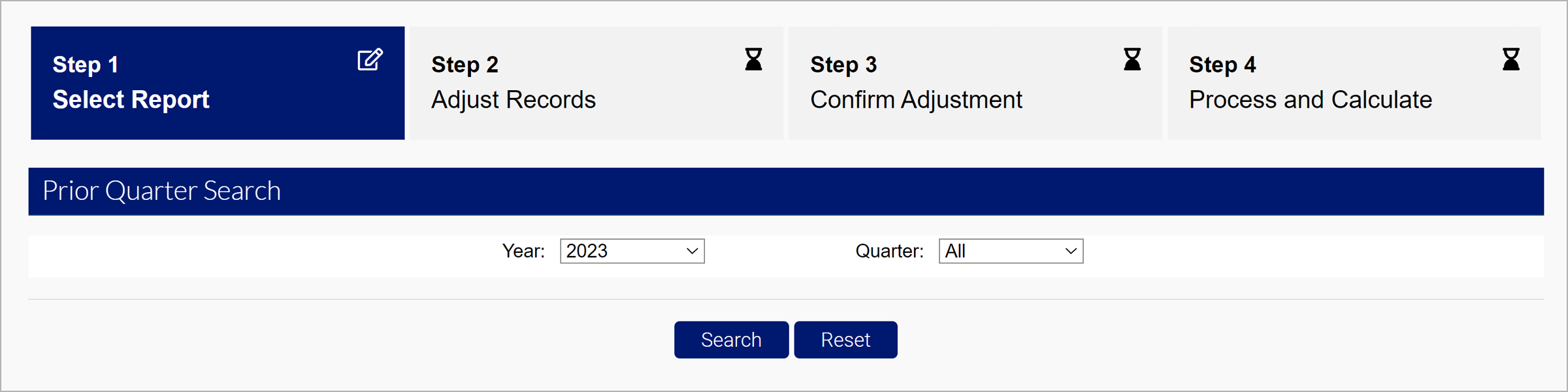
Search for previous quarters to adjust by the year and the quarter in the Prior Quarter Search section.
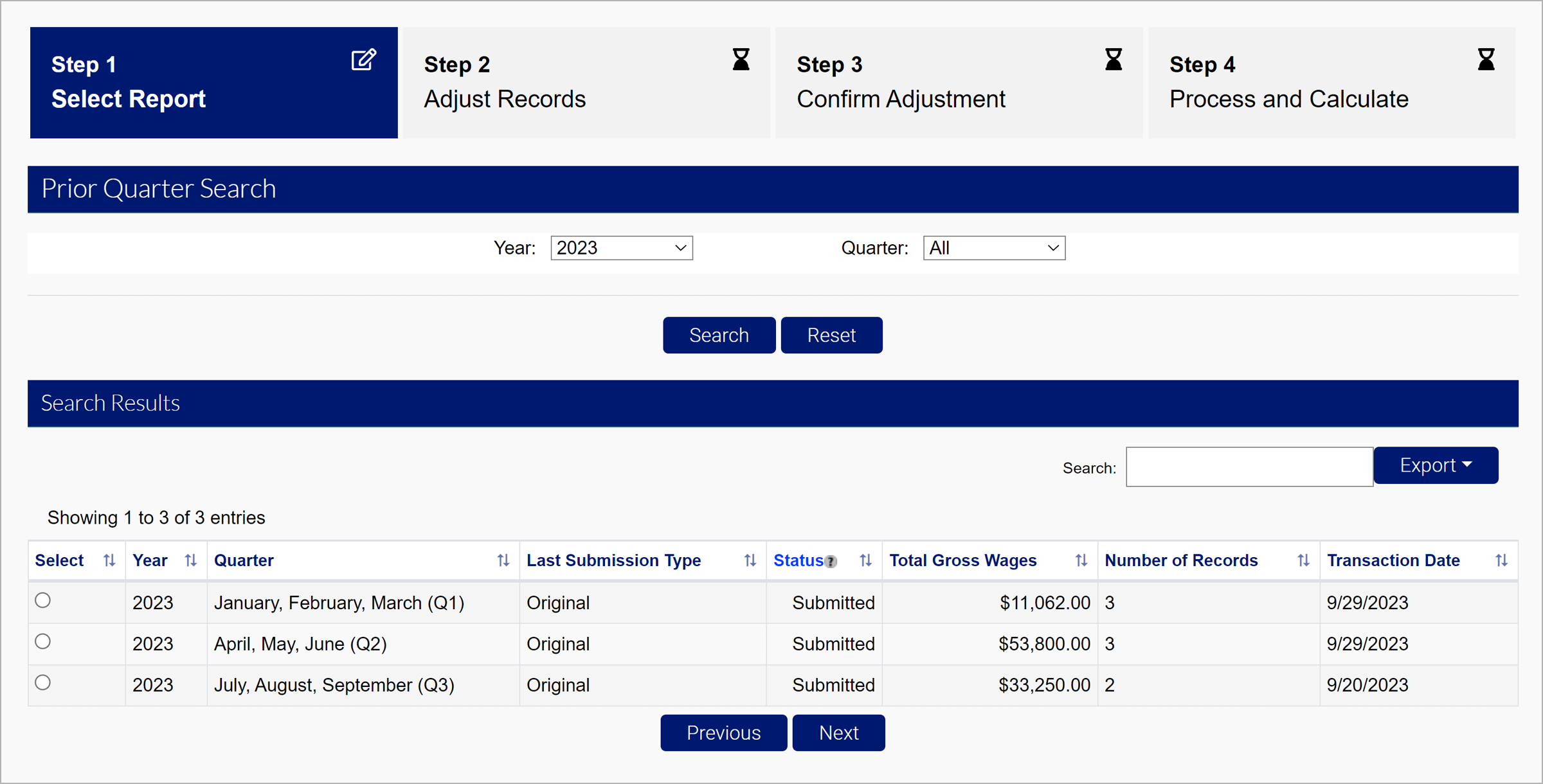
Select the report you would like to adjust, and click “Next”.
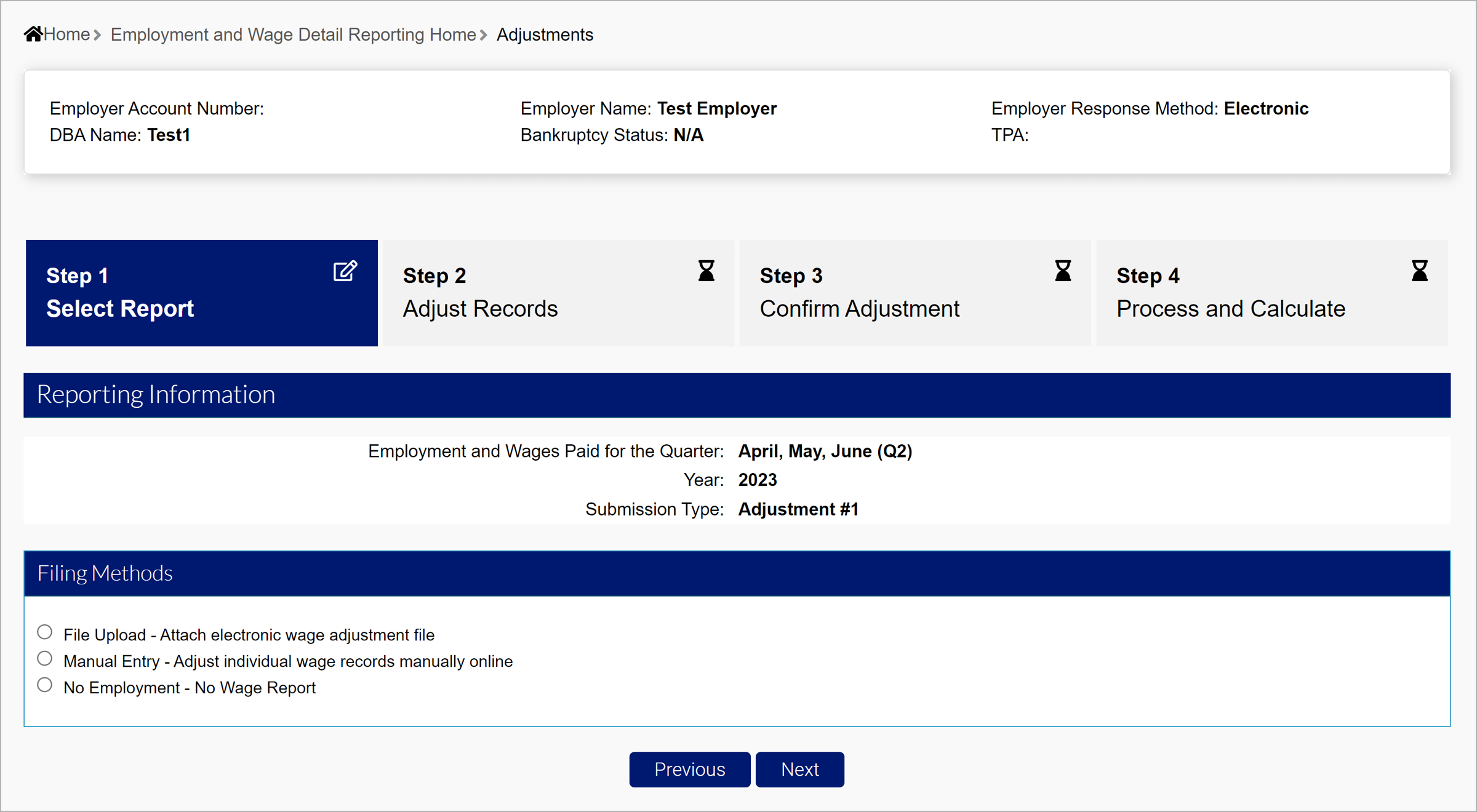
There are three options for your adjustment.
- File Upload - Attach electronic wage file
- Manual Entry - Adjust individual wage records manually online
- No Employment - No wage report
Each of these options will be entered the same way as a typical wage report.
File Upload
Files will be uploaded with the same specifications as the initial report. You can resubmit all wages, include additional employees, or adjustments you want to overwrite in the file.
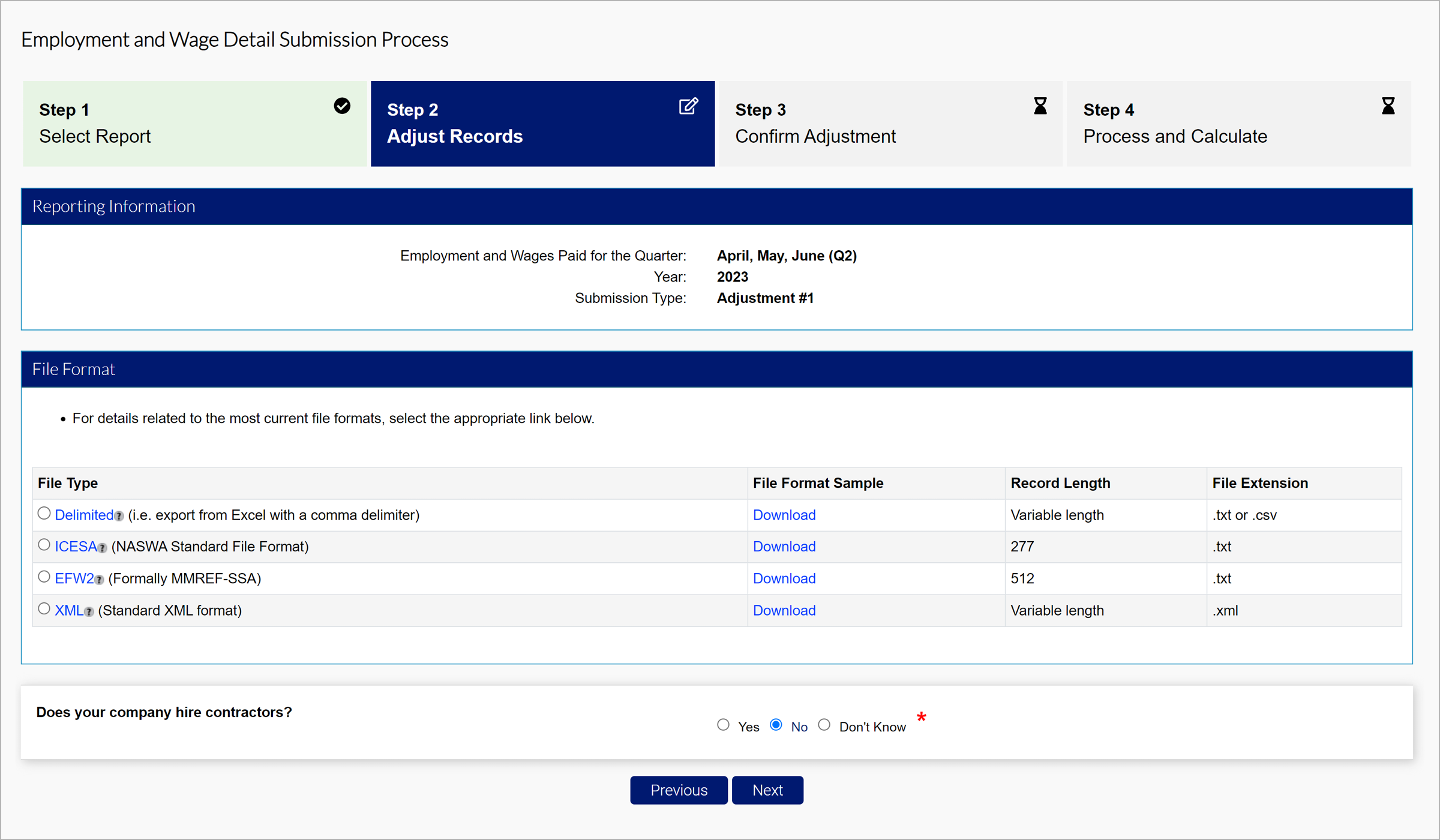
There are four eligible file types.
- Delimited format - .txt or .csv file that can be exported from Excel. The length of this file will vary and be accepted up to 20MB. Review the Delimited Specifications sheet for more information.
- ICESA format - .txt file in the NASWA standard file format. This will be 277 characters long. Review the ICESA Specification sheet for more information.
- EFW2 format - .txt file formally known as MMREF-SSA. This will be 512 characters long. Review the EFW2 Specification sheet for more information.
- XML format - .xml file that will vary in length and be accepted up to 20MB. Review the XML Specification sheet for more information.
The tooltip over each file type includes an editable PDF of the selected file format.
Select the file type you wish to submit, and click “Next”.
On the adjustment field of the file, identify the reason for the adjustment:
- Employment and Wages adjusted because of incorrectly reported wages.
- Wages adjusted because worker(s)were mistakenly included/excluded.
- Employment and Wages adjusted to correct computer system, data entry or accounting errors.
- Employment and Wages adjusted because they were reported to the wrong state.
- Employment and Wages adjusted because the workers performed services for a different business.
- Employment details adjusted to reflect correct 12th of the month employment information.
- Employment and Wages Adjusted as a result of an Audit
- SSN or name changed
- Other.
Select the file you would like to attach based on the selected format, and click “Next”.
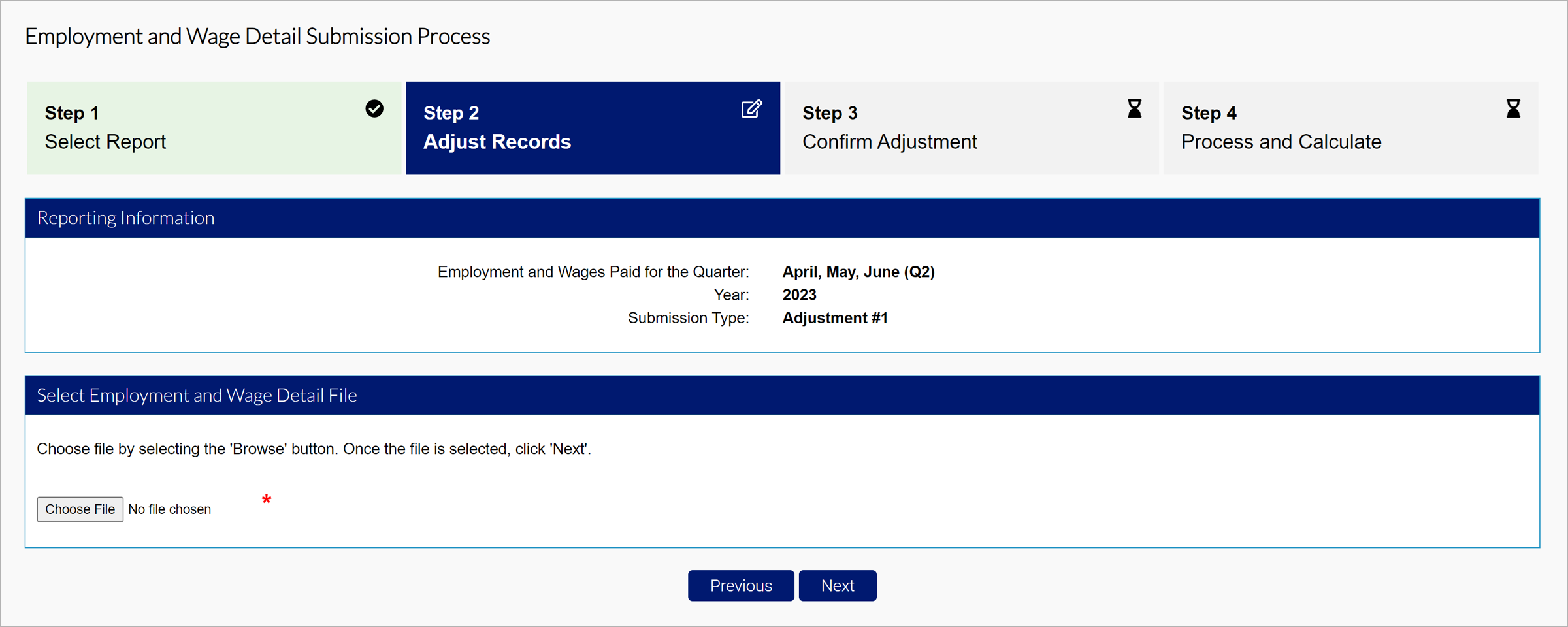
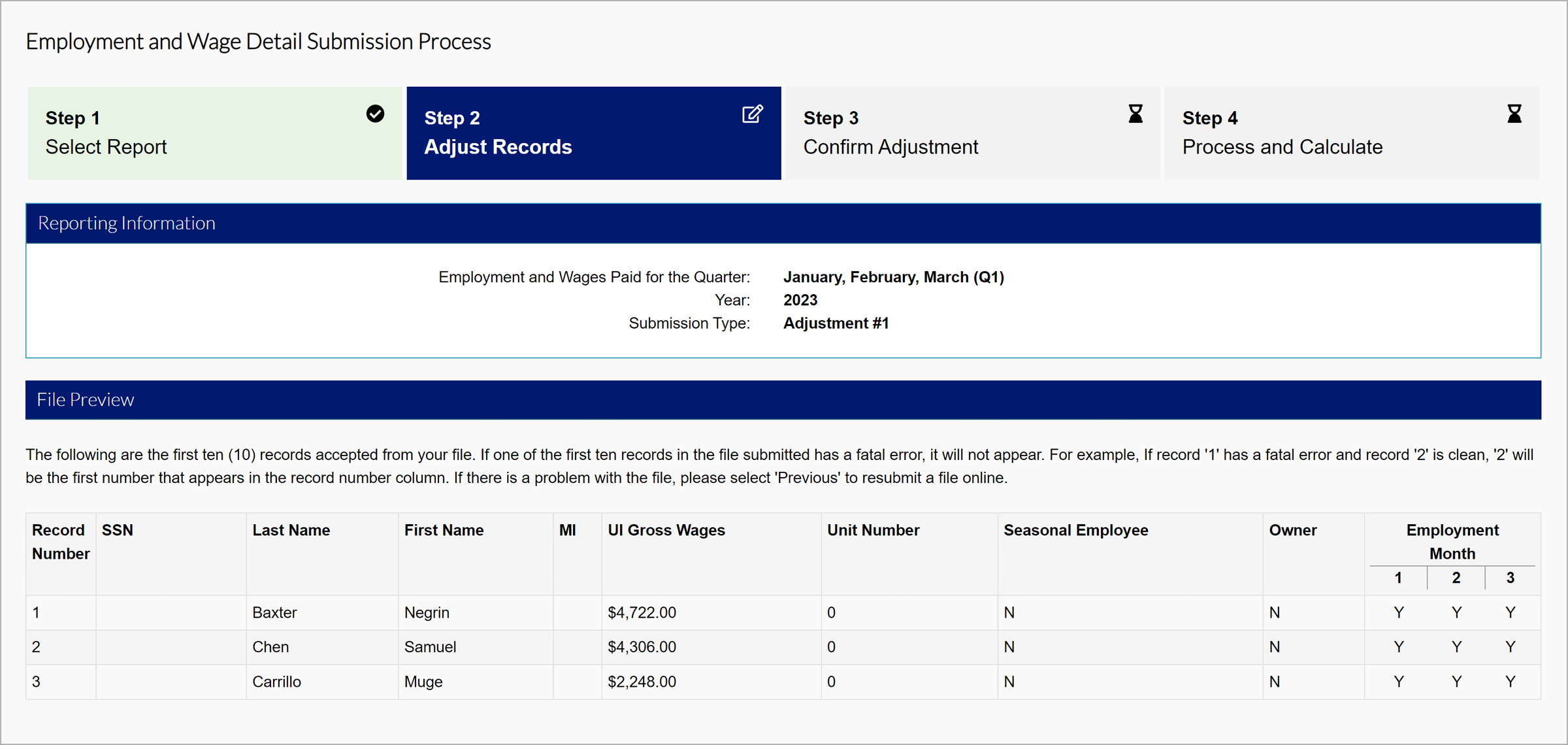
MyUI Employer+ will show the preview of the first 10 records in the file. Click “Next” to proceed.
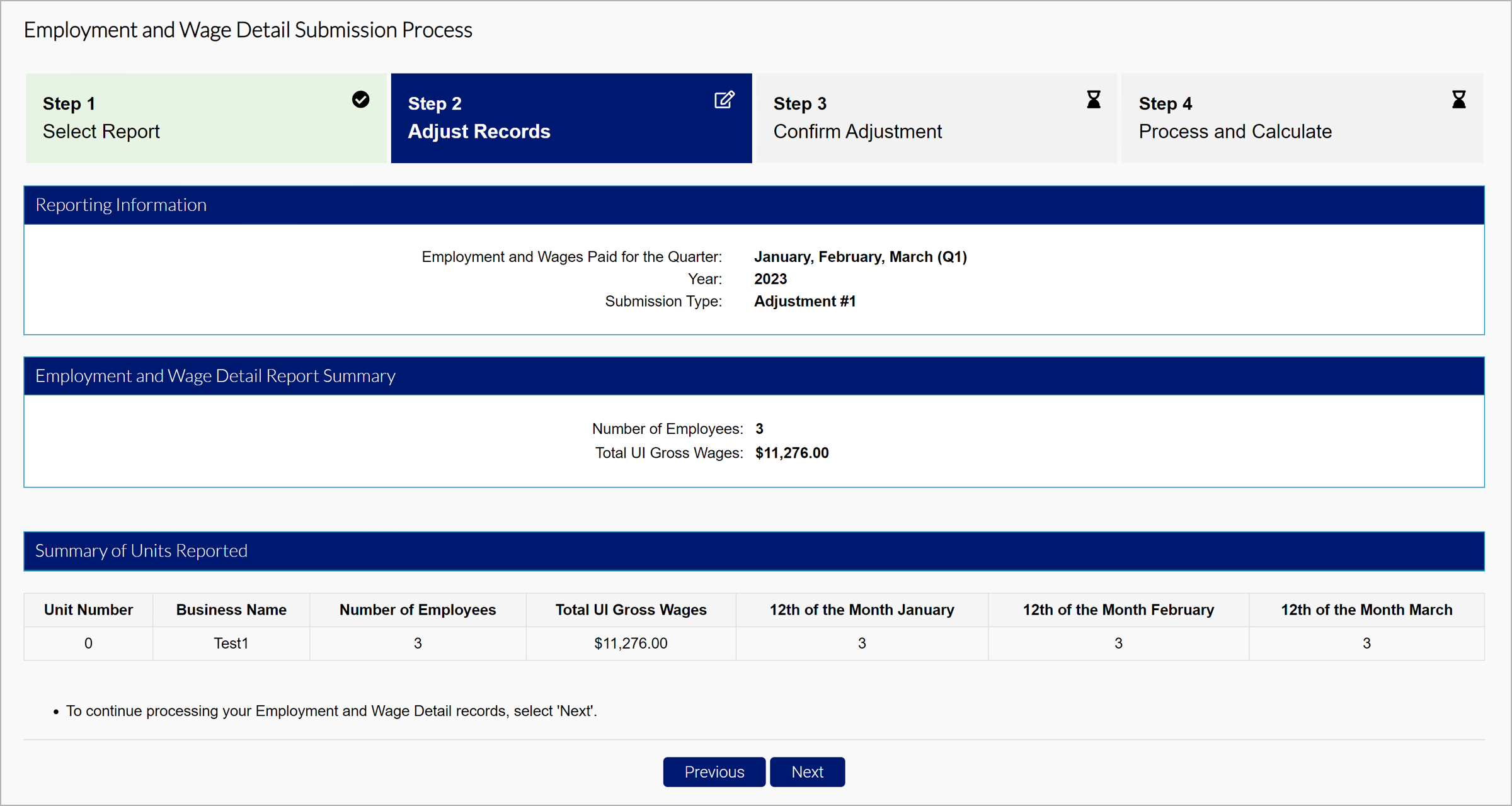
There will be a summary of wages displayed. Click”‘Next”.
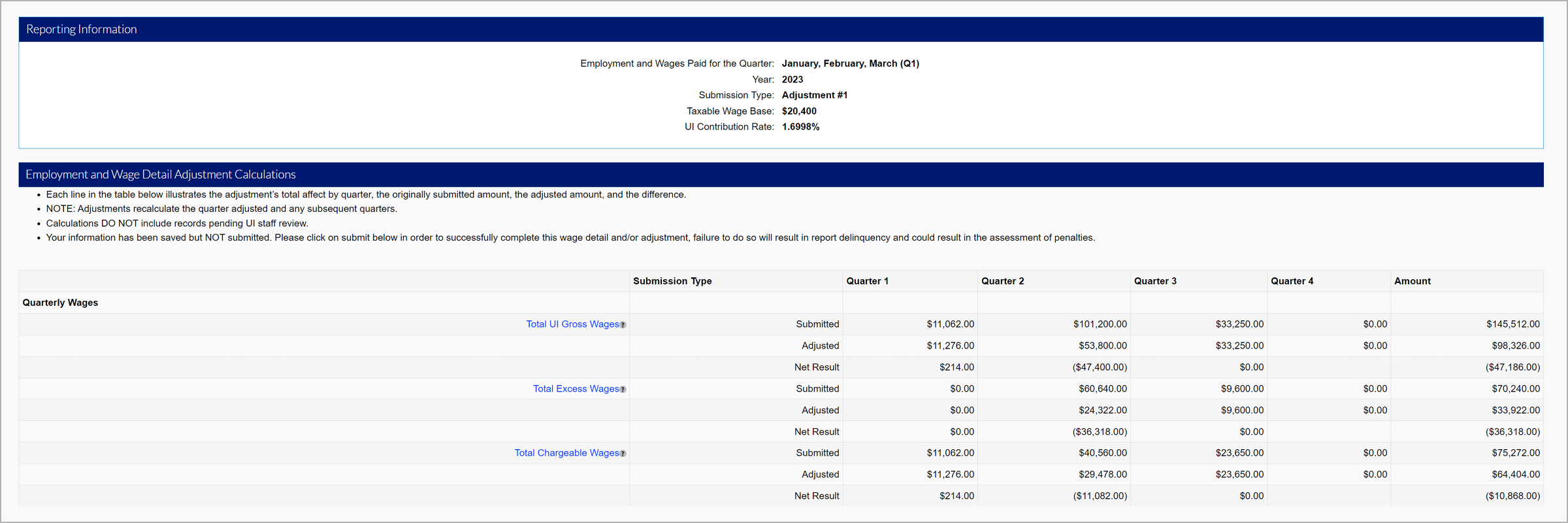
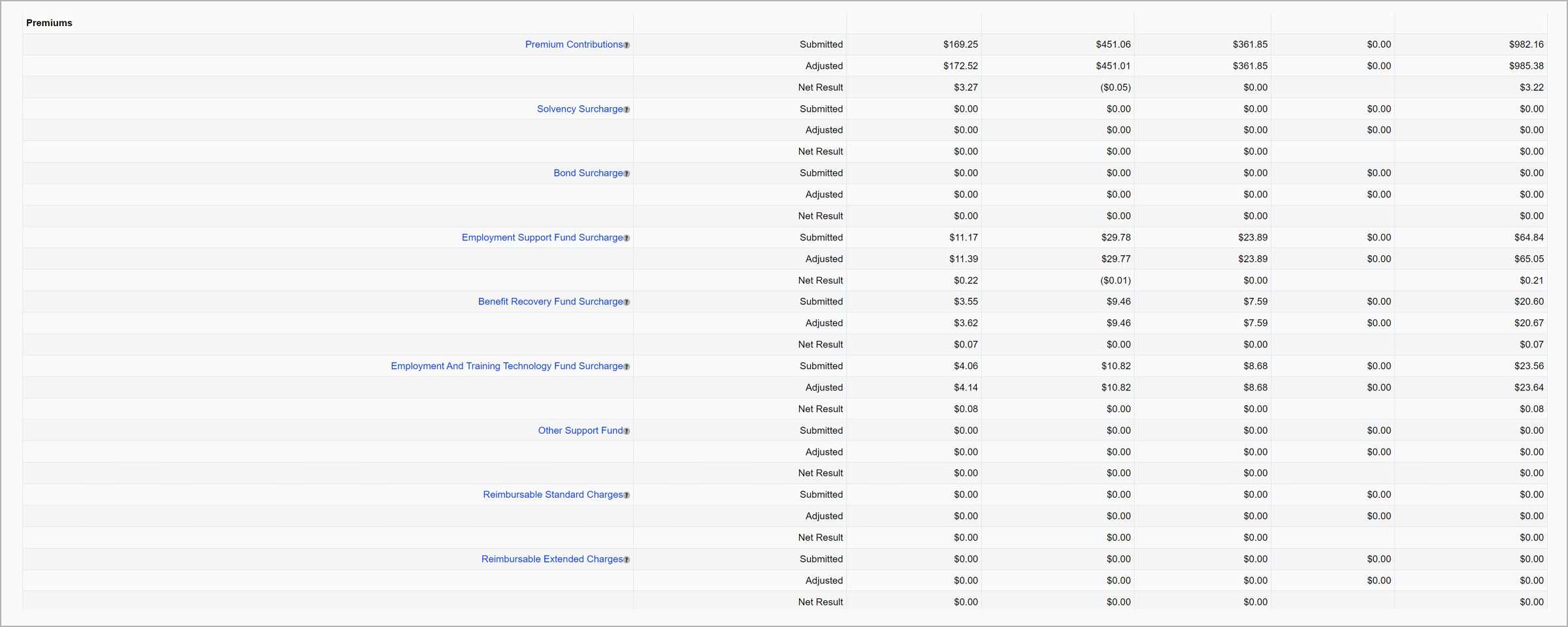
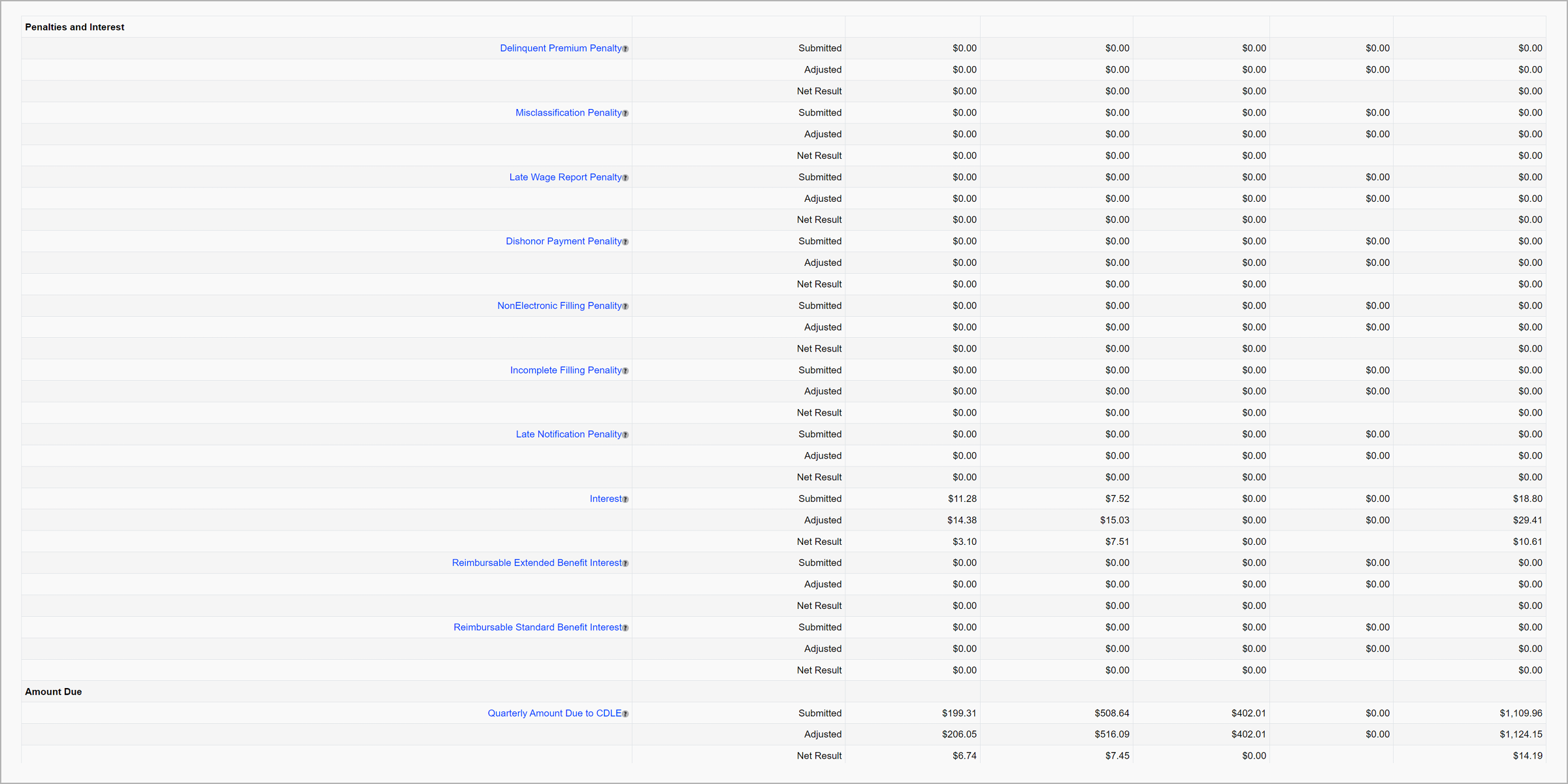
The breakdown will now include the original submission, the adjustment, and the net. You may owe additional premiums, or be provided a refund depending on the adjustment.
Select the certification checkbox and click “Submit”.

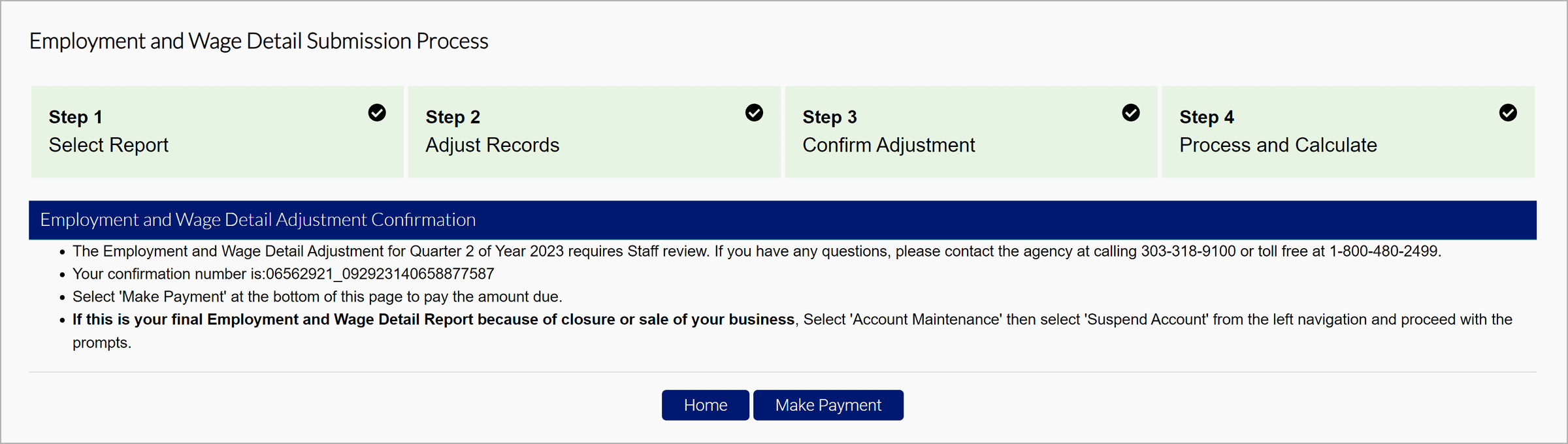
Then, you will be brought to the confirmation page.
Manual Entry
Select the employees you would like to adjust from the report by clicking "Add", if applicable, and click “Next”.

View any selected employees and add additional employees for the adjustment in the Wage Detail Records section.

To correct or modify an SSN on a submitted wage report, select the remove checkbox and then enter the correct SSN and details on a new line (row) “Next” or “Save”.
To update the employee’s SSN or Name, delete the employee’s record and re-enter the corrected information.
The monthly employment data reported below should be a count of all full-time and part-time employees in covered employment.
If an employee was employed in the payroll period based on the definition above, select “Yes”.
If no employment for an employee in the payroll period based on the definition above, select “No”.
Click “Next” after you have adjusted all of your quarterly employee and employment information.

The Wage Detail Adjustment Reason Verification screen will ask for you to enter a reason for adjustment and click “Next”.
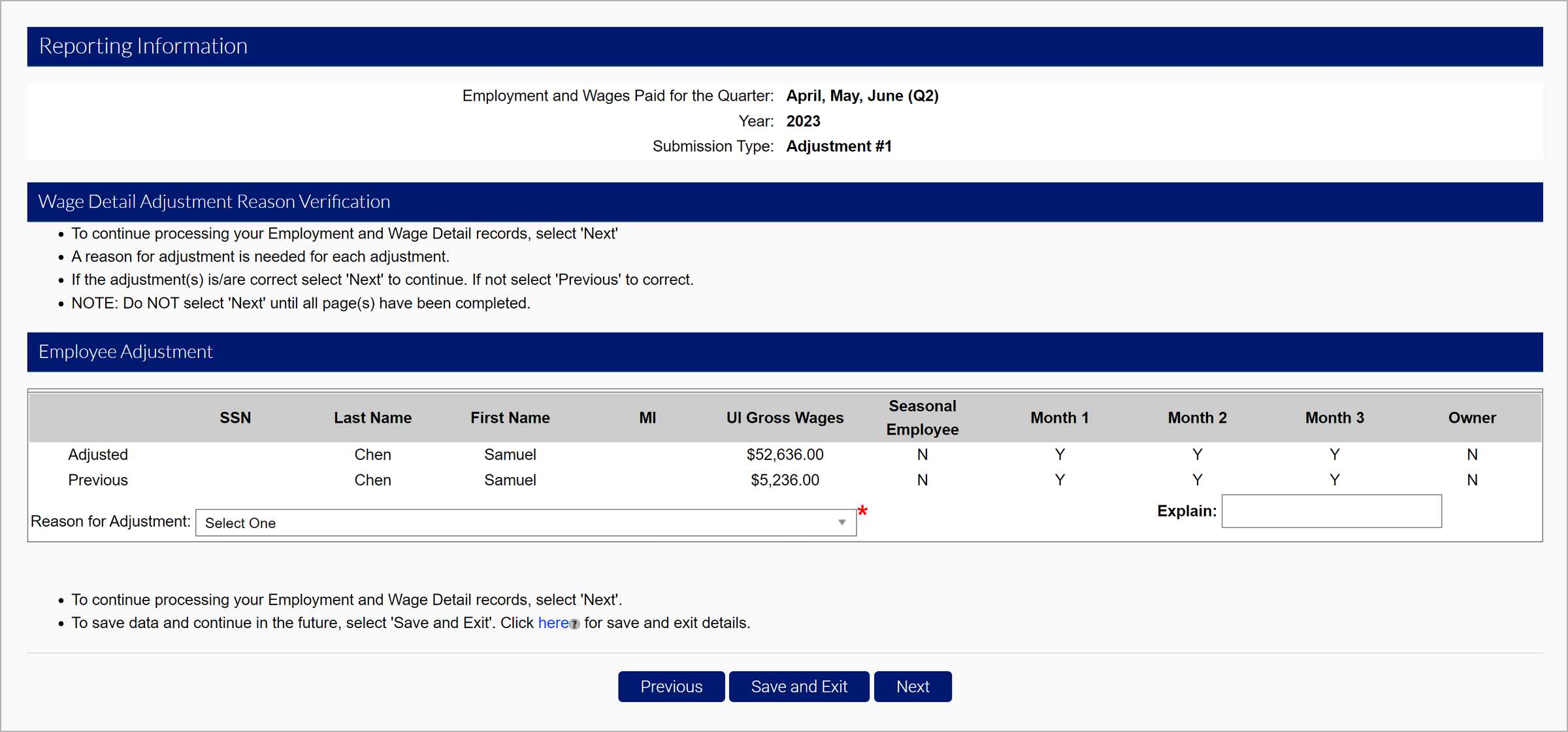
- Original Submission
- Employment and Wages adjusted because of incorrectly reported wages.
- Wages adjusted because worker(s) were mistakenly included/excluded.
- Employment and Wages adjusted to correct computer system, data entry or accounting errors.
- Employment and Wages adjusted because they were reported to the wrong state.
- Employment and Wages adjusted because the workers performed services for a different business.
- Employment details adjusted to reflect correct 12th of the month employment information.
- Employment and Wages Adjusted as a result of an Audit
- SSN or name changed
- Fraud
- Other.
Review the summary and click “Next”.
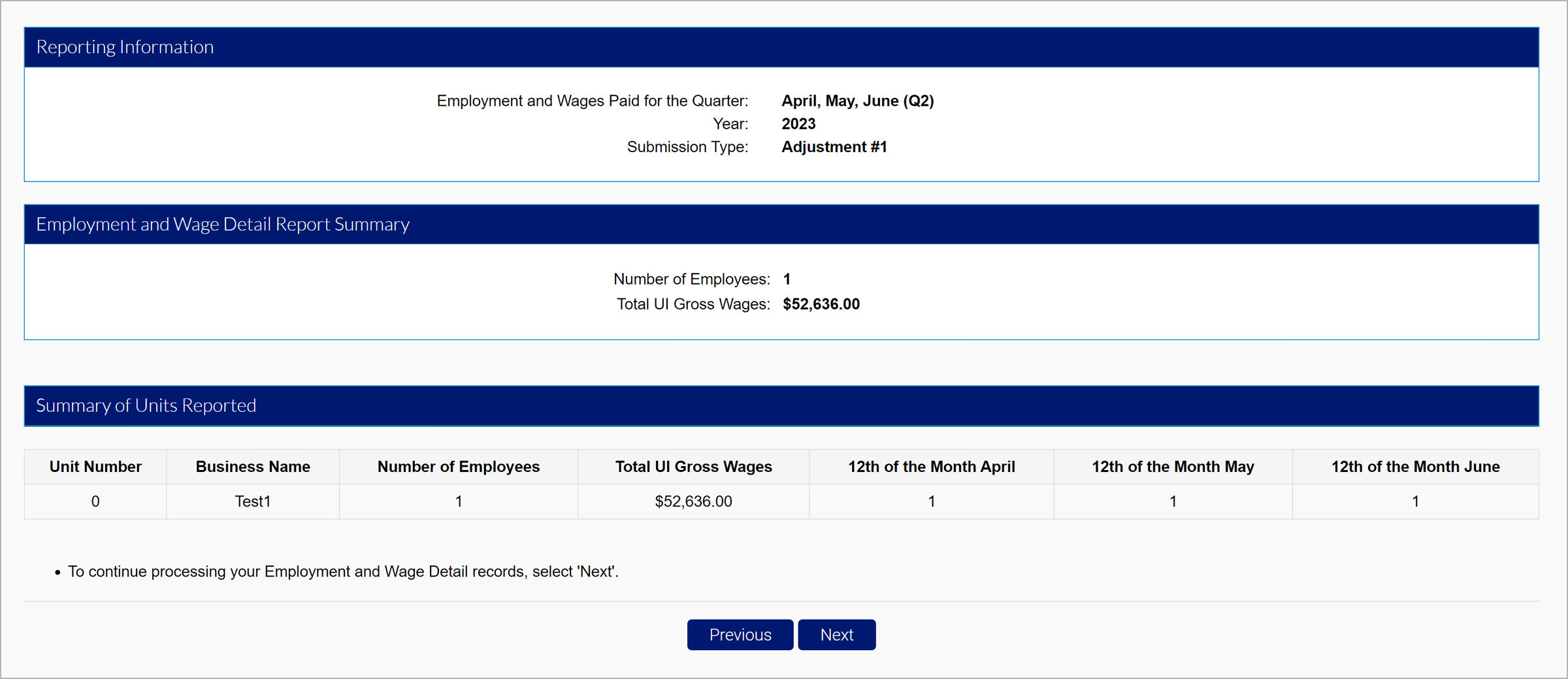
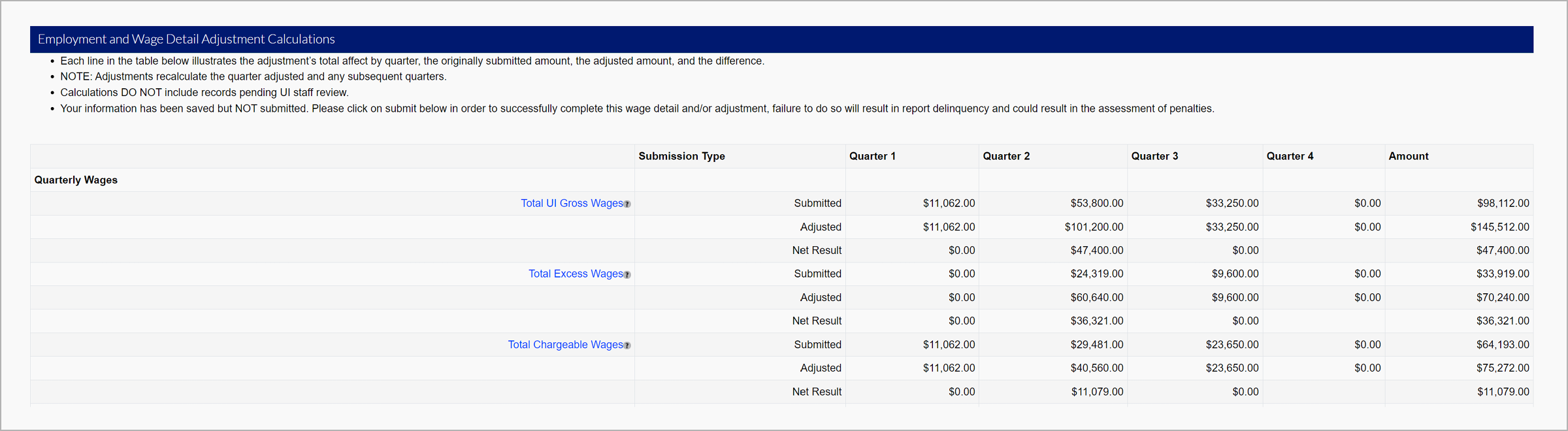


The breakdown will now include the original submission, the adjustment, and the net. You may owe additional premiums, or be provided a refund depending on the adjustment.
Select the certification checkbox and click “Submit”.

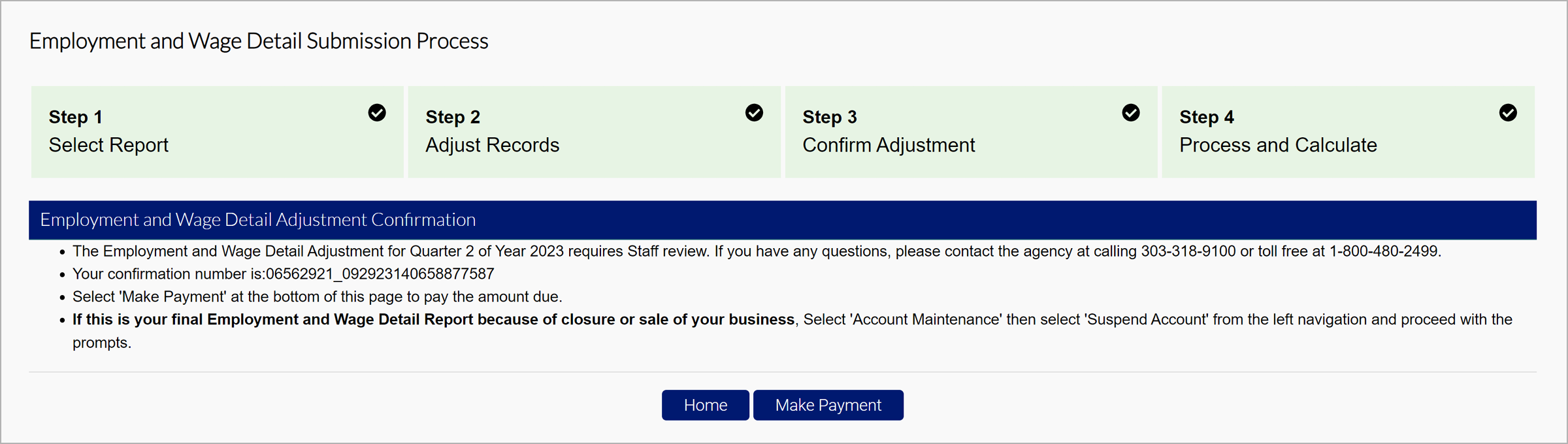
You will be brought to the confirmation page.
No Employment
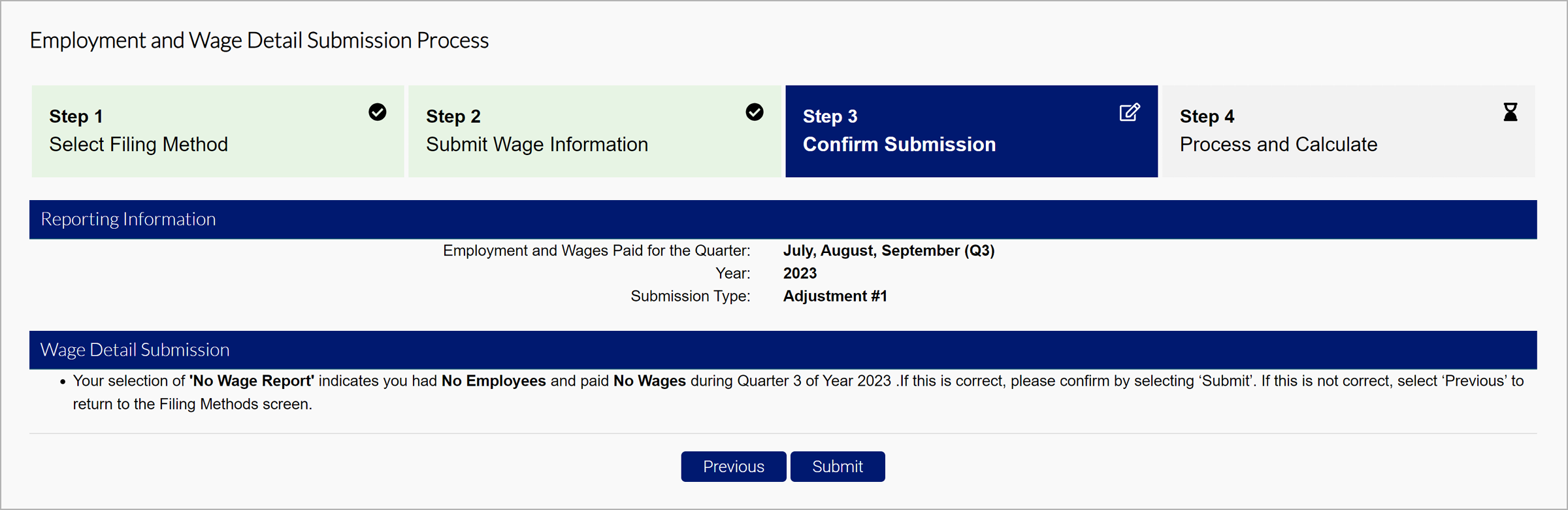
Quarters can be adjusted to reflect no employees and no wages. Click “Submit”.
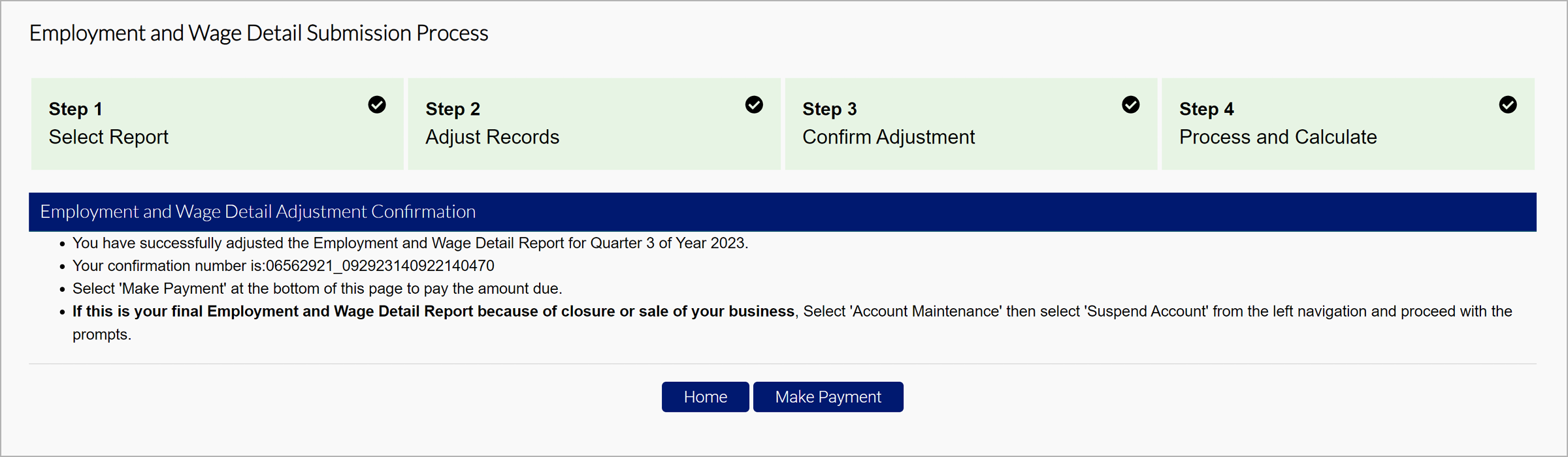
You will be brought to the confirmation page.