
Submitting a Wage Report
Employers must report wages quarterly, if determined to be liable. You can report your wages in MyUI Employer+. Wage reports are required to be filed electronically — you will need to sign up for a MyUI Employer+ account and file online. If you have been filing wage reports by paper and would like to continue doing so, you will need to apply for a non-electronic communication waiver. Contact UI Employer Services 303-318-9100 (Toll Free 1-800-480-8299) for more information on the paper waiver process.
Wage reports are due quarterly.
- April 30: Quarter 1 reports are due for wages paid in January, February, March.
- July 31: Quarter 2 reports are due for wages paid in April, May, June.
- October 31: Quarter 3 reports are due for wages paid in July, August, September.
- January 31: Quarter 4 reports are due for wages paid in October, November, December.
Click the “Employment and Wage Detail Reporting Home” tab on the left hand navigation menu. Click the subtab labeled “Submit Employment and Quarterly Wage Detail” to begin.
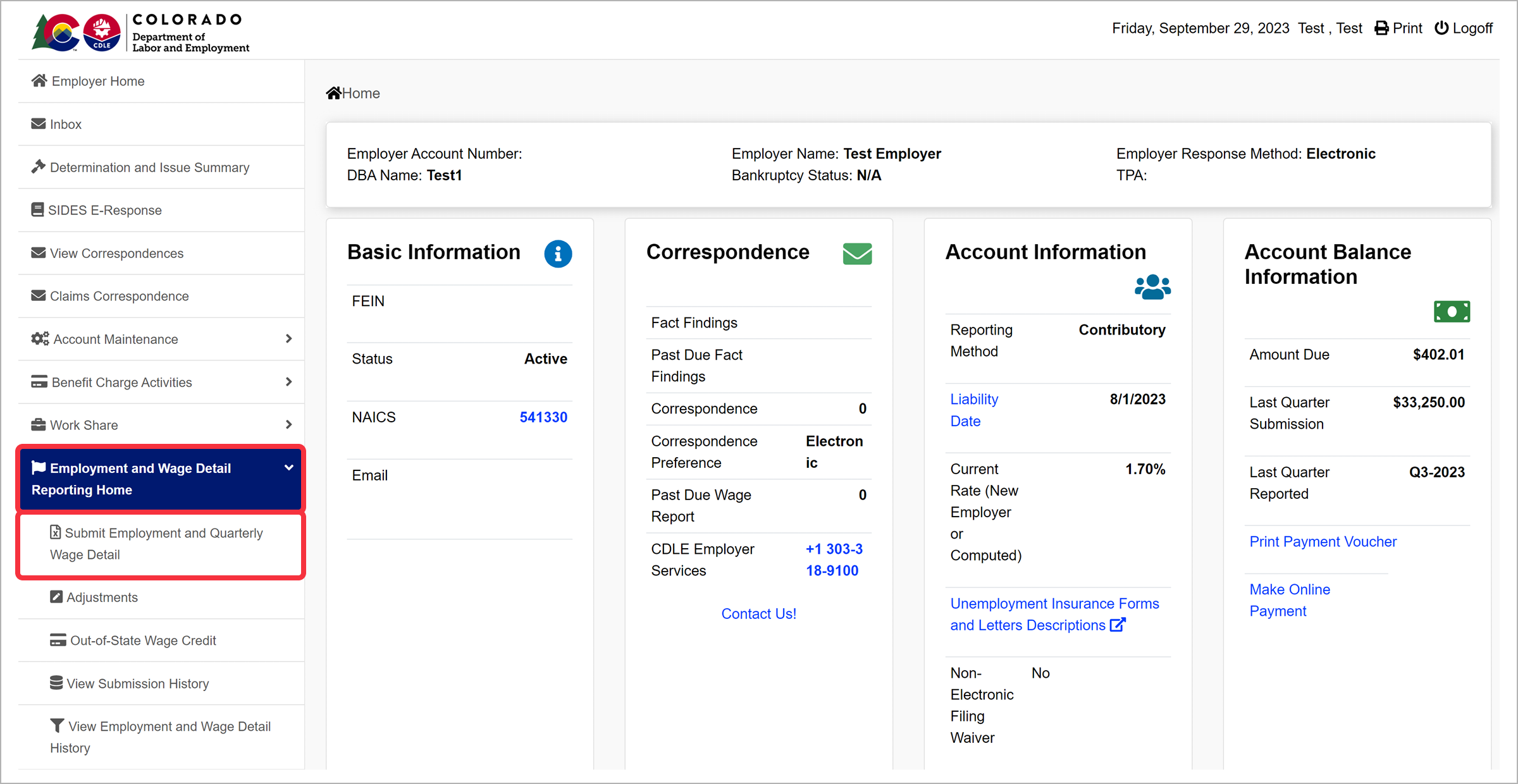
Select the period you would like to report wages for, including the Quarter and Year, in the Reporting Period section. The system will only allow you to submit wages for the current quarter, or previous quarters the employer has been found liable for.
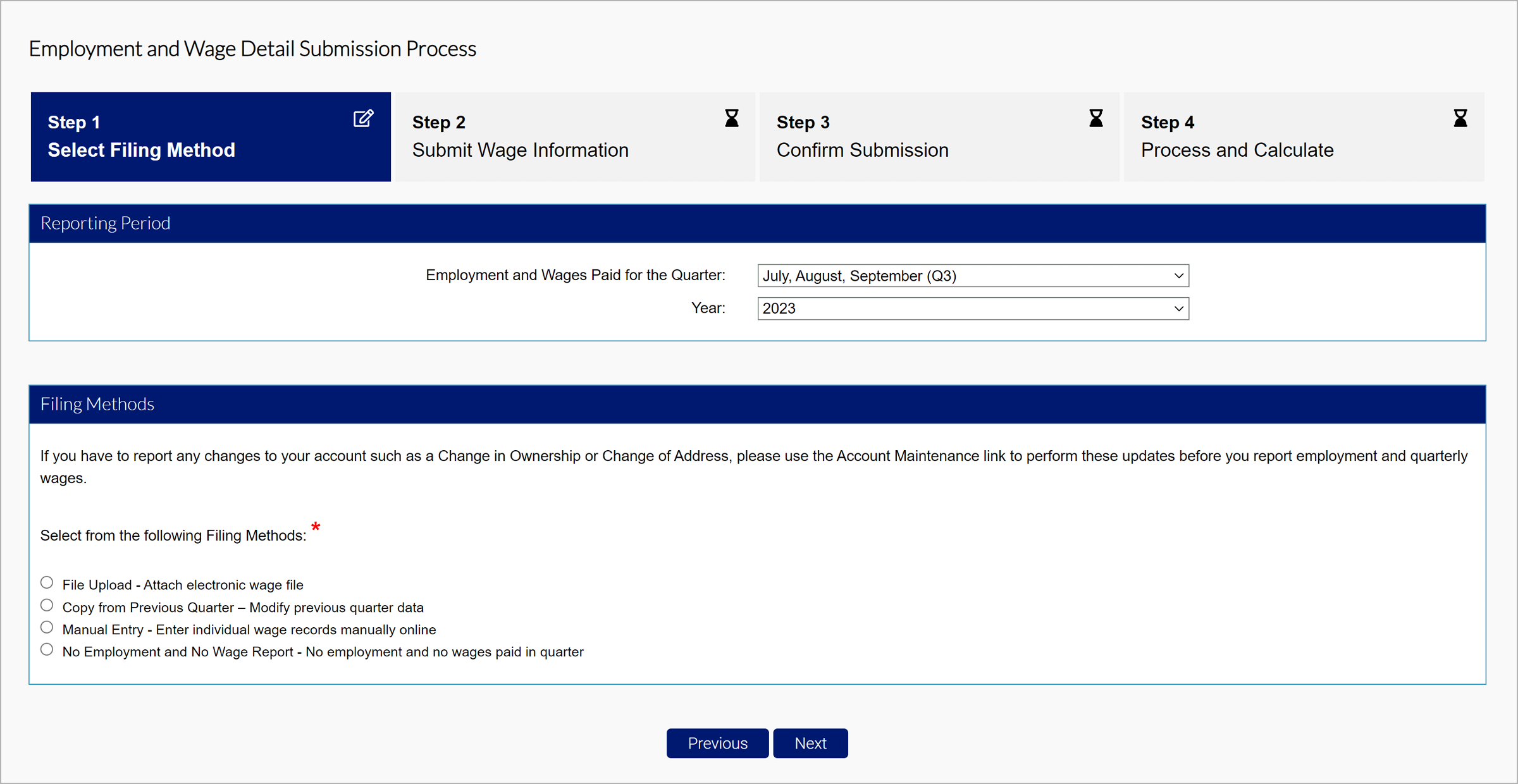
Select a filing method from the available options:
- File Upload - Attach electronic wage file
- Copy from Previous Quarter – Modify previous quarter data
- Manual Entry - Enter individual wage records manually online
- No Employment and No Wage Report - No employment and no wages paid in quarter
Click “Next” to proceed with the selected method.
If you select File Upload:
There are four eligible file types to upload:
- Delimited format - .txt or .csv file that can be exported from Excel. The length of this file will vary and be accepted up to 20MB. Review the Delimited Specification sheet for more information.
- ICESA format - .txt file in the NASWA standard file format. This will be 277 characters long. Review the ICESA Specification sheet for more information.
- EFW2 format - .txt file formally known as MMREF-SSA. This will be 512 characters long. Review the EFW2 Specification sheet for more information.
- XML format - .xml file that will vary in length and be accepted up to 20MB. Review the XML Specification sheet for more information.
The file specifications for bulk and individual submissions are the same. NOTE: All file types should use the EAN format found on Employer accounts in MyUI Employer+ (example: 01234567).
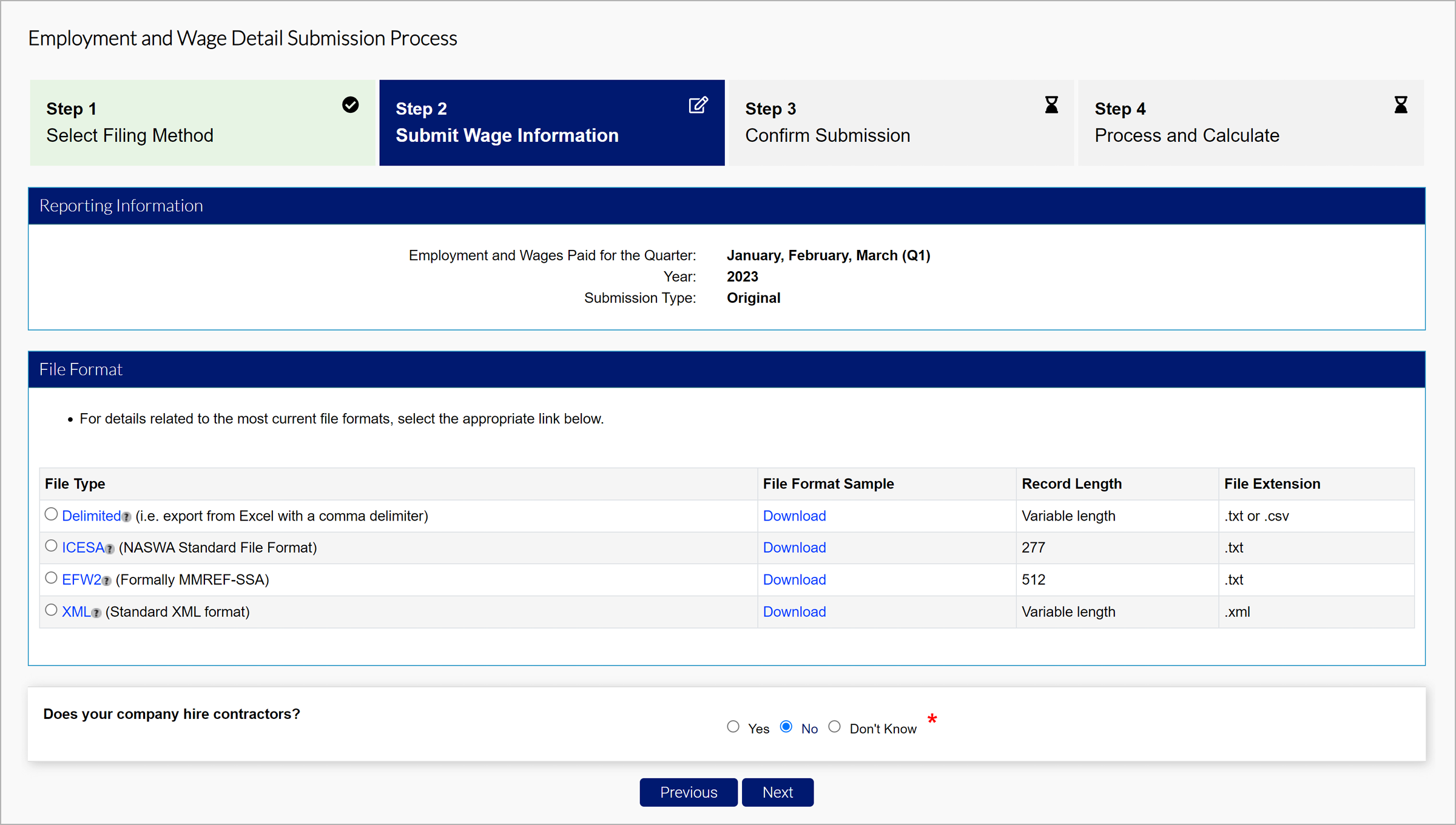
The tooltip over each file type includes a downloadable PDF of the file format sample document.
Select the file type you wish to submit, and click “Next”.
Select the file you would like to attach based on the selected format, and click “Next”.
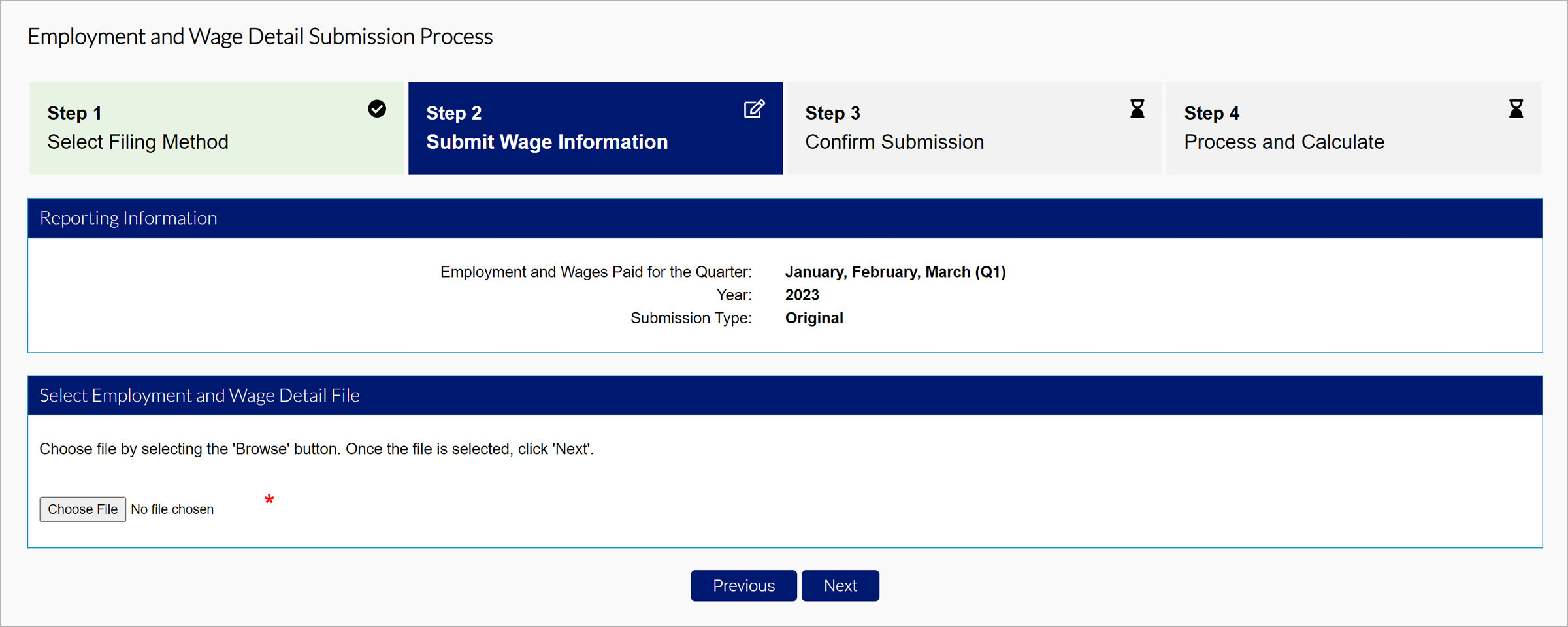
The File Preview section will display any fatal or non-fatal errors, if applicable. Fatal errors must be resolved before the system will accept the submission. The error message will include a description of the error and what needs to be corrected, if applicable. More details on fatal and non-fatal errors can be found in each file specification PDF.
If errors are present, review the File Error tooltips.
If no fatal errors are present in your submission, the first 10 records in the file will appear on the screen.
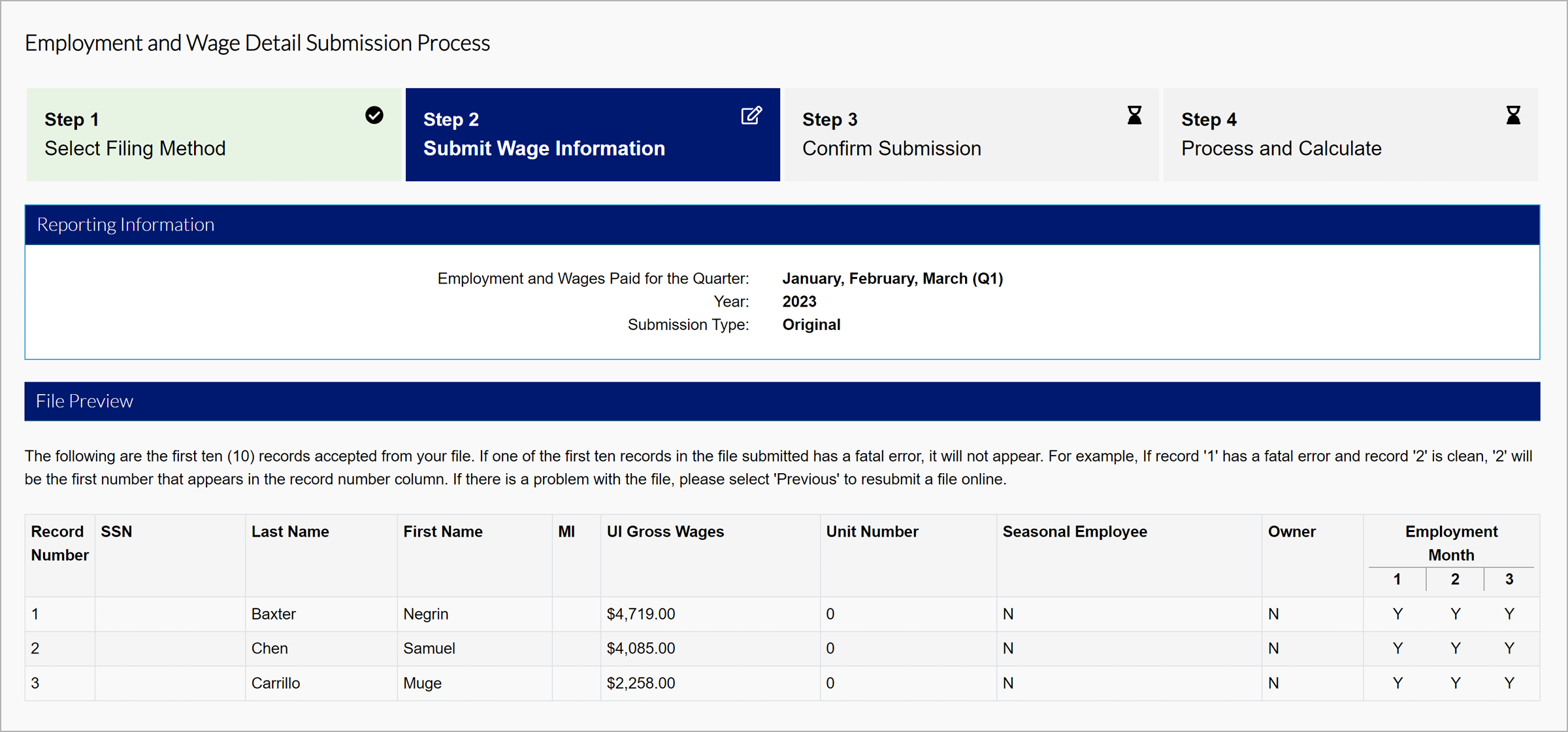
Review your submission details and click “Next”.
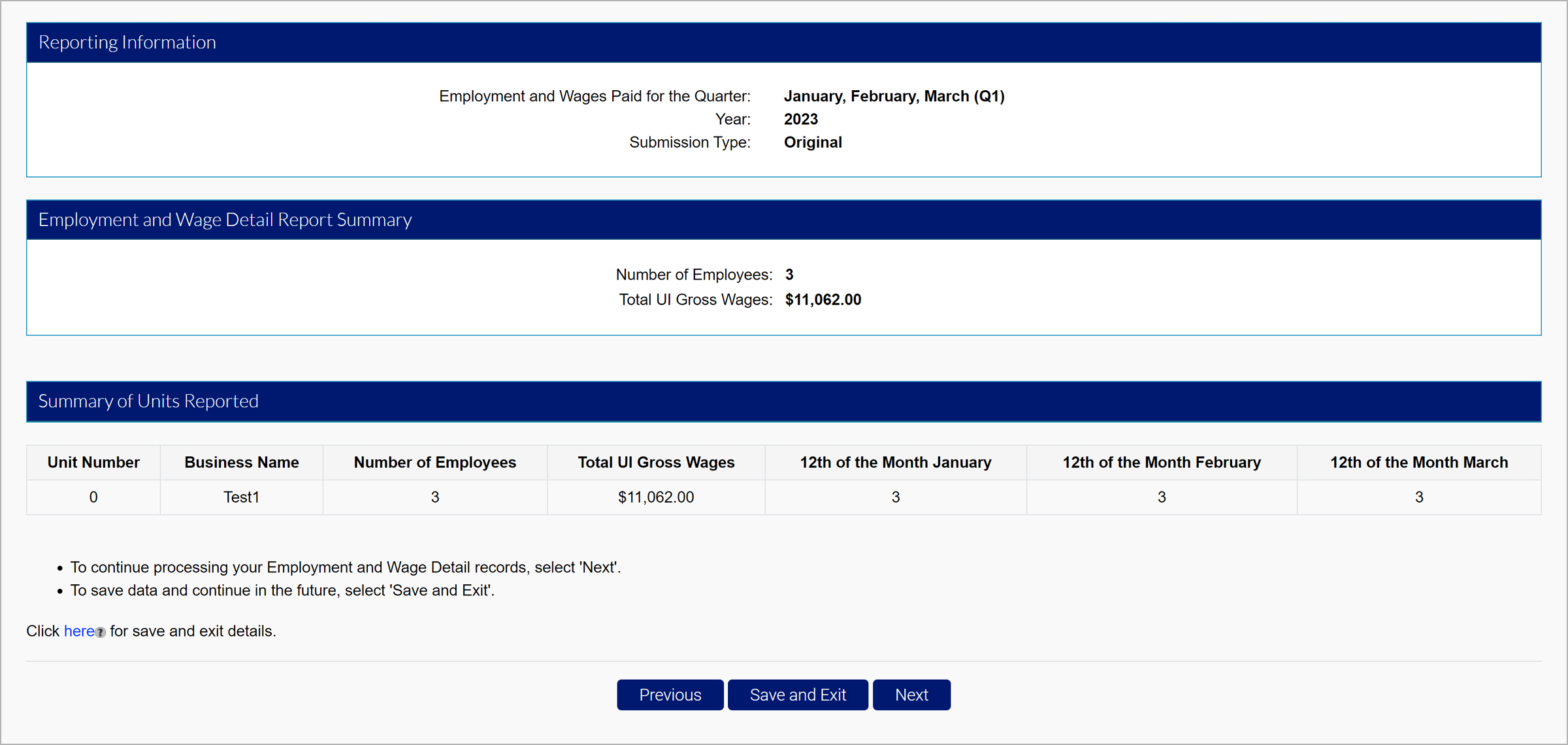
The Quarterly Calculations screen will include the breakdown of wages, premiums, penalties and interest, and the total amount due.
Select the certification checkbox, and click “Submit” to submit your wage report.

Copy from Previous Quarter
For submissions copying from previous quarters, search from previous quarter submissions, or select from the submitted reports.
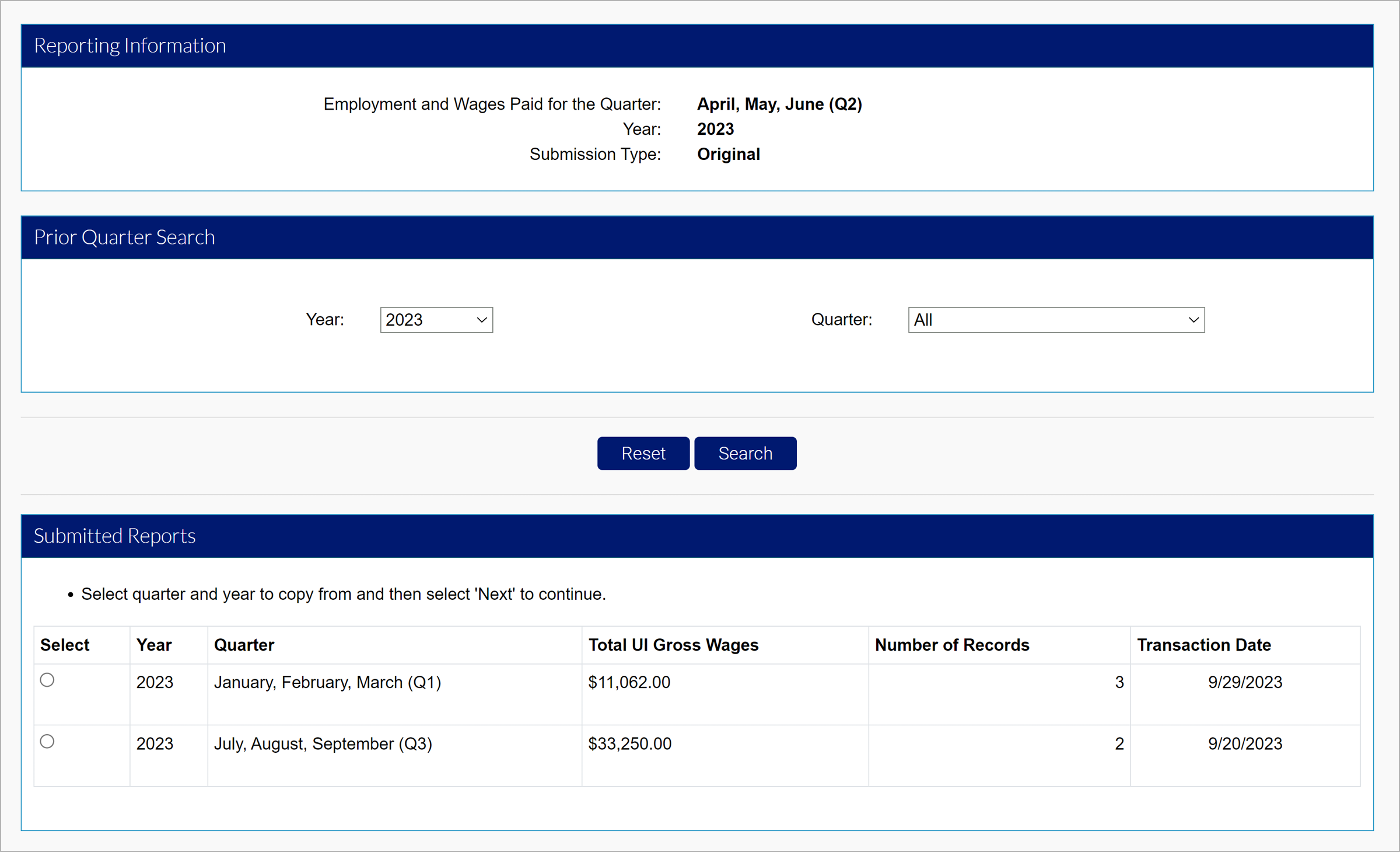
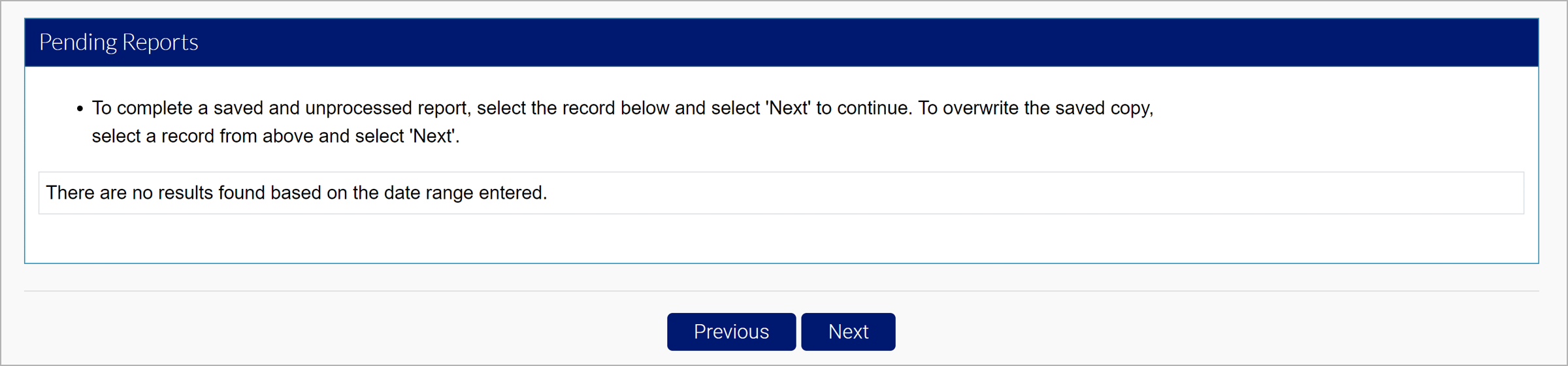
Select the desired report, and click “Next”.
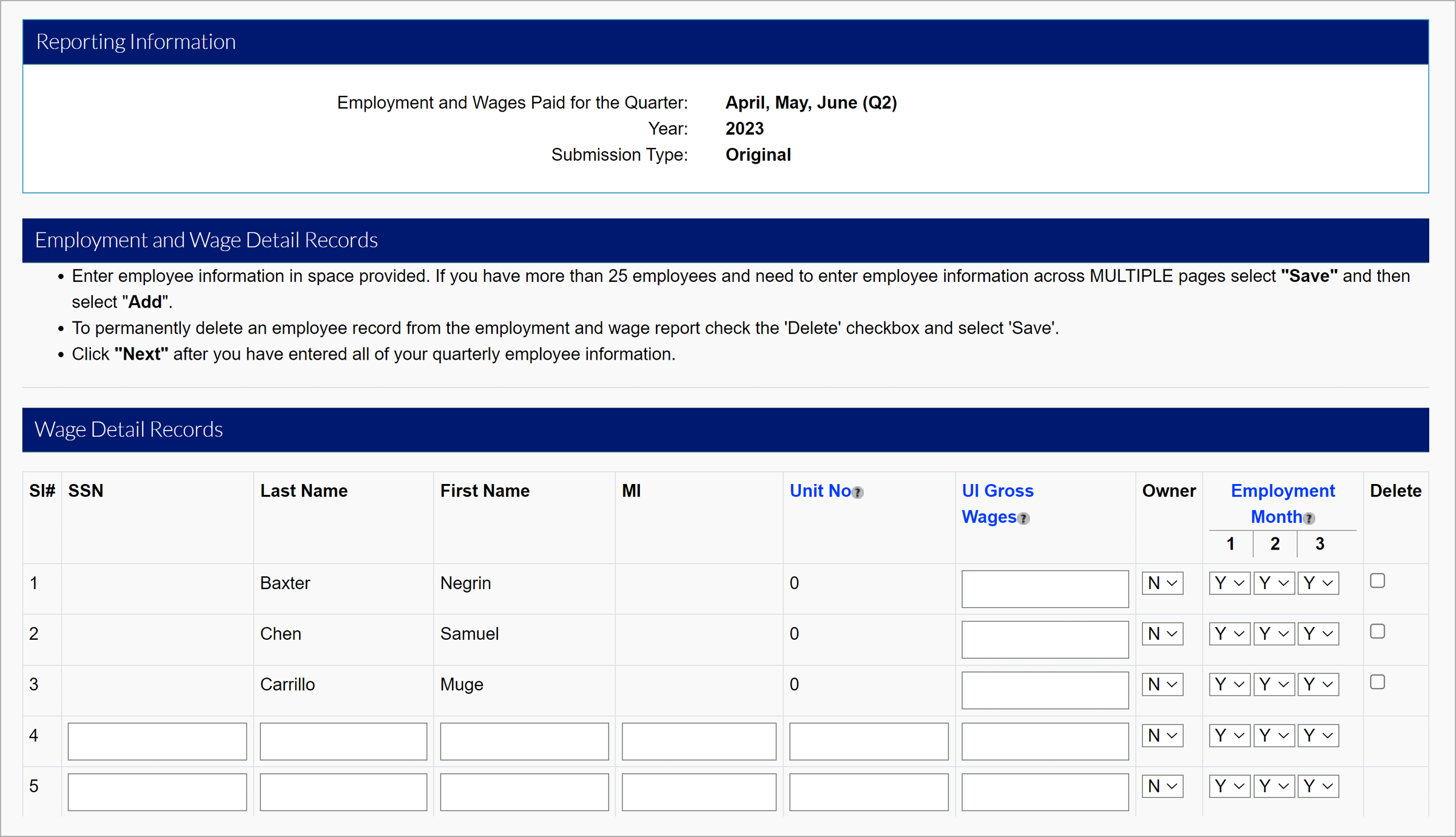
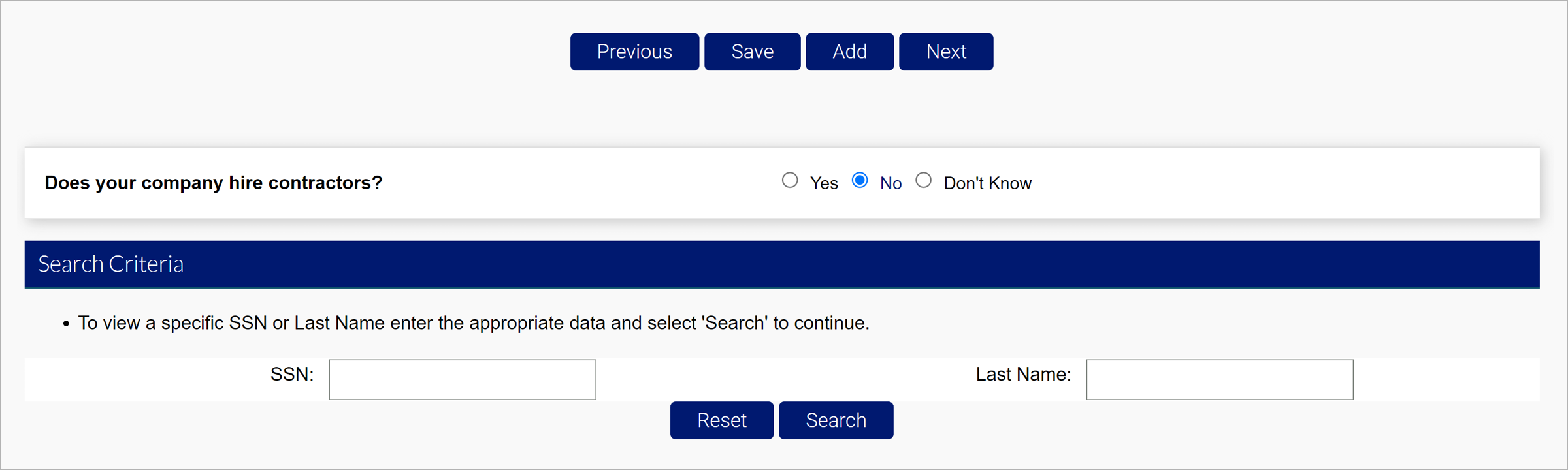
Enter wages, adjust employment months, and add or delete individuals in the Wage Detail Records section.
Click “Save” after your entry, and click “Next” to proceed. If you would like to search for specific individuals, search by SSN or Last Name at the bottom of the screen.
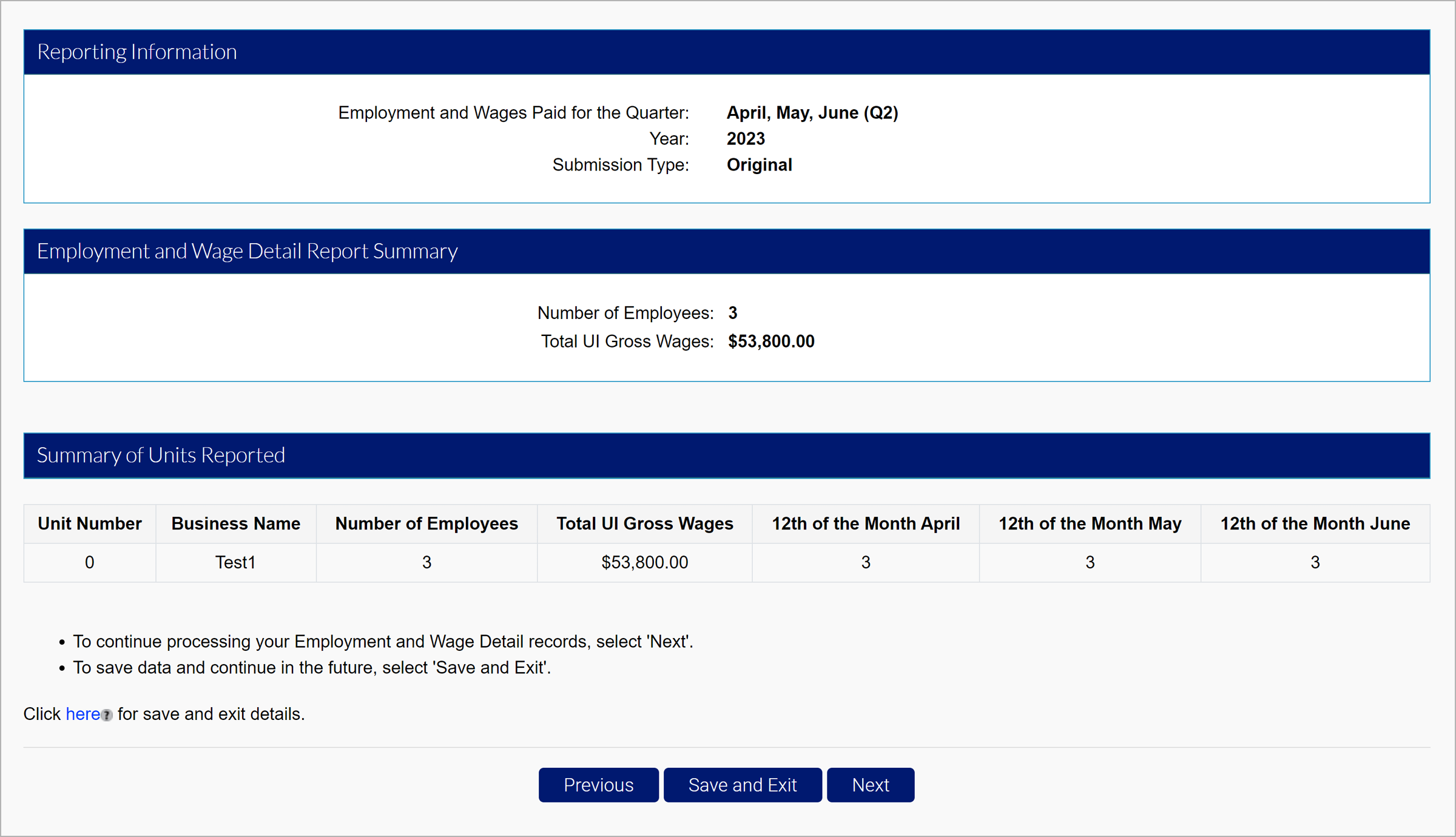
View the report summary, and click “Next”.
See your quarterly calculations screen which will include the breakdown of wages, premiums, penalties and interest, and the total amount due.
Select the certification checkbox, and click “Submit” to submit your wage report.
You will be brought to the confirmation screen confirming your submission.
Manual Entry
Employers can manually enter the wages inline.
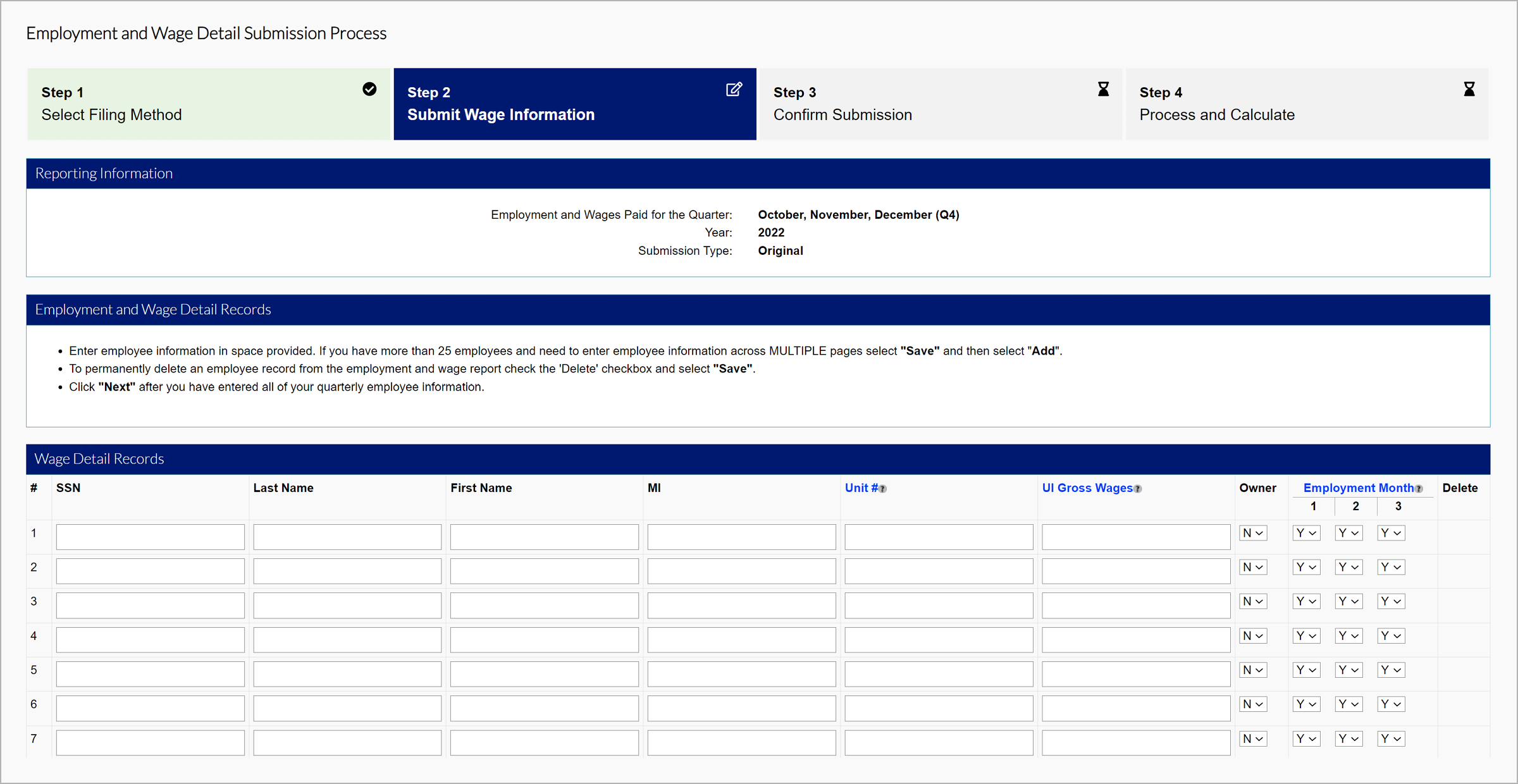
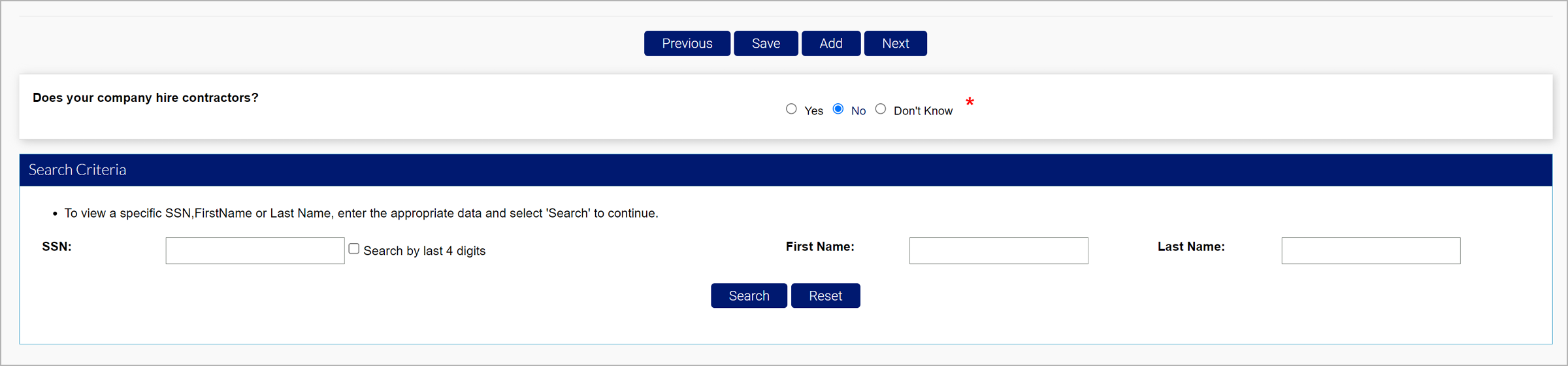
Click “Save” after the entry, then click “Next” to proceed. If you would like to search for specific individuals, search by SSN or Last Name at the bottom of the screen.
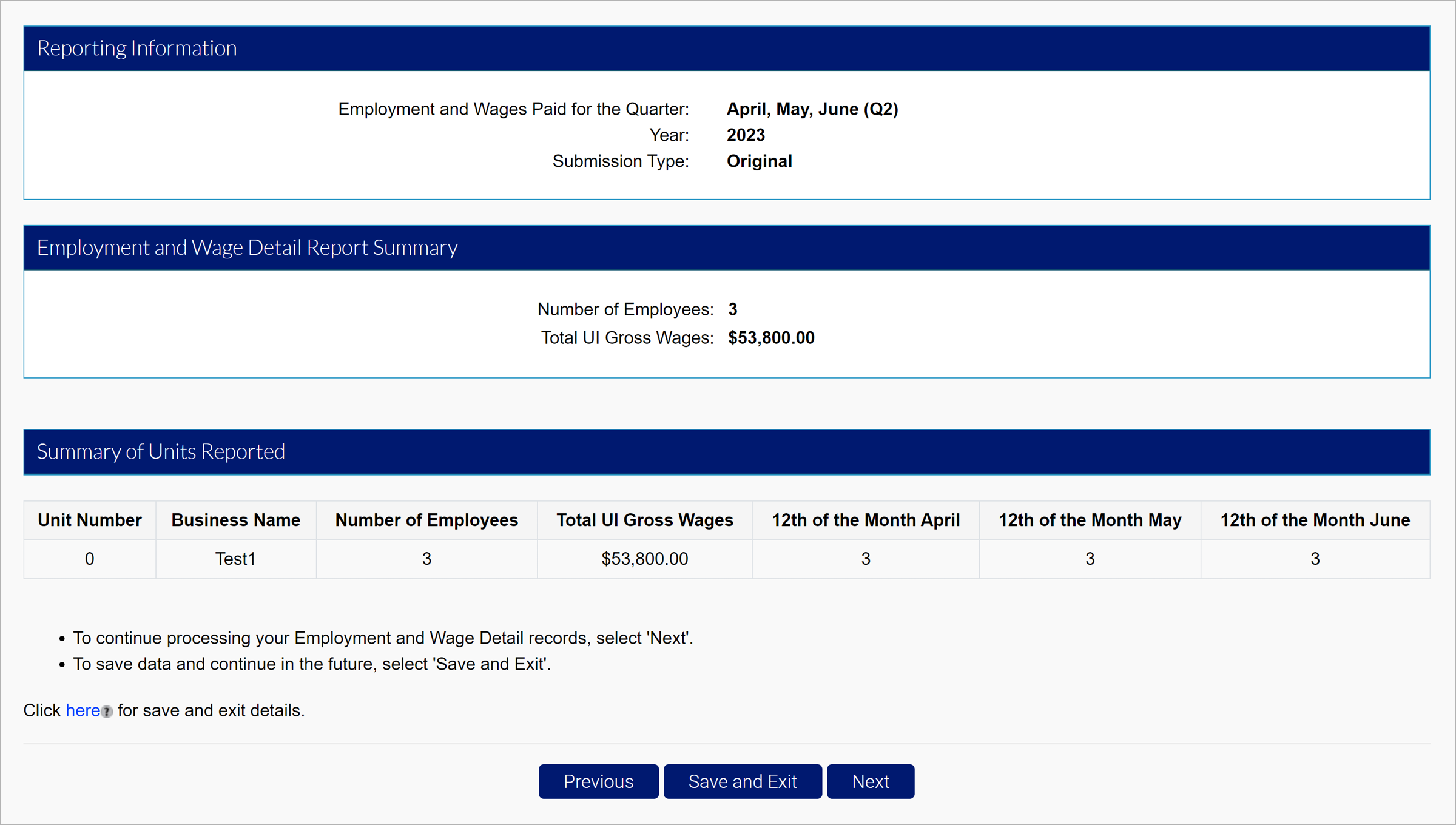
View the report summary, and Click “Next”.
The Quarterly Calculations screen includes the breakdown of wages, premiums, penalties and interest, and the total amount due.
Select the certification checkbox, and click “Submit” to submit your wage report.
The Quarterly Calculations screen includes the breakdown of wages, premiums, penalties and interest, and the total amount due.
Select the certification checkbox, and click “Submit” to submit your wage report.
You will be brought to the confirmation screen confirming your submission.
No Employment and No Wage Report
If you had no employees and paid no wages, use the final option to submit a No Employment and No Wage report.
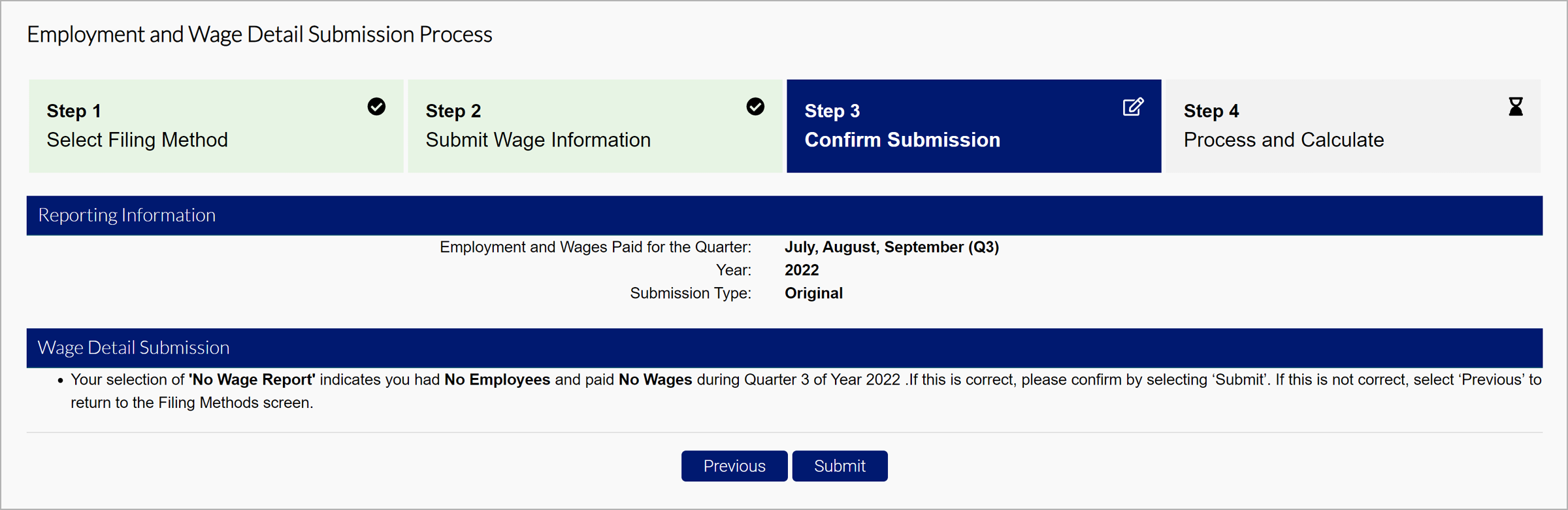
Click ‘Submit’.